
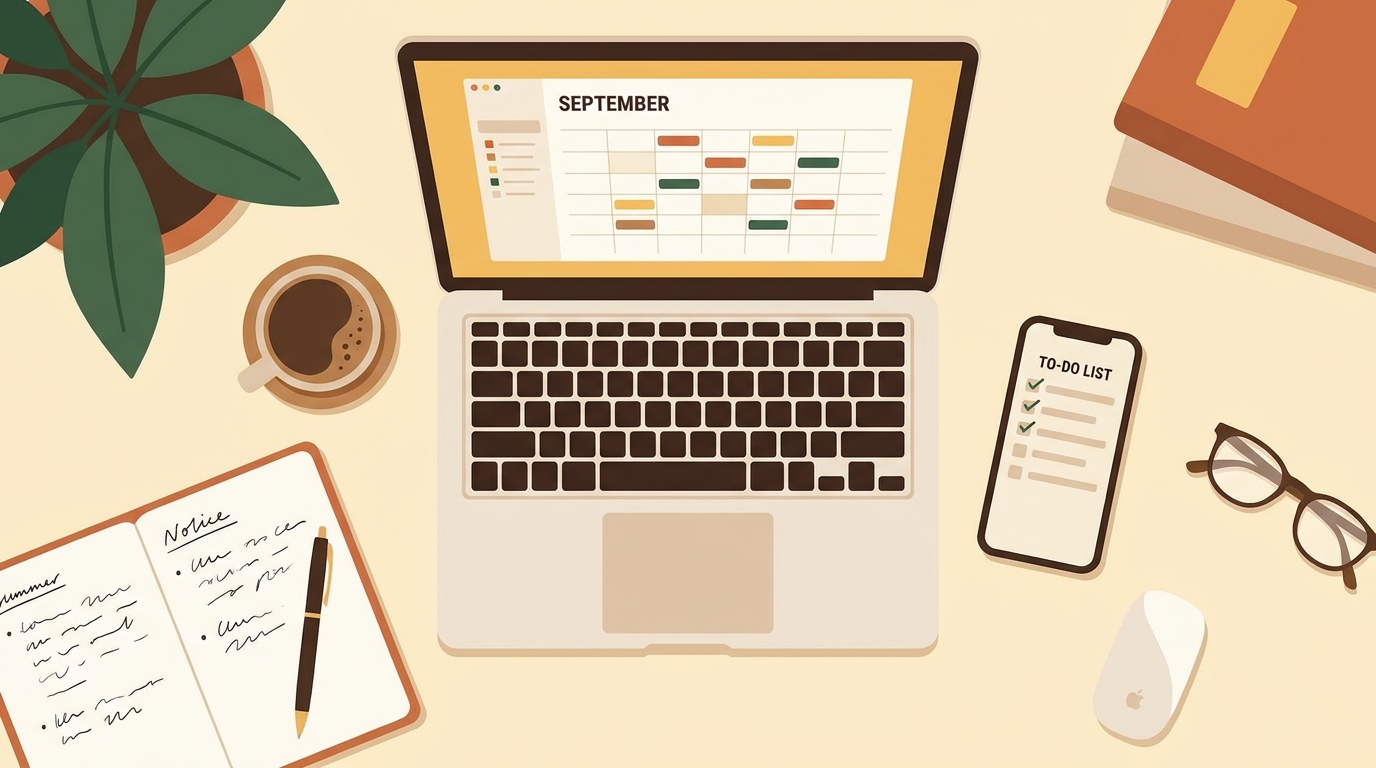
Setting Up Your Daily Workspace: Free Calendar & Task Management Systems
Most productivity problems aren’t a motivation problem — they’re a setup problem. If your calendar lives in one app, your tasks live in a notes file, and your reminders live in your head, it doesn’t matter how disciplined you are; something will fall through the cracks. Building a proper free calendar and task management setup fixes that at the root, and the good news is you don’t need to pay for a single tool to do it.
This guide walks through how to set up a daily workspace using entirely free tools, which combinations actually work well together, and the specific mistakes that quietly sabotage most DIY productivity systems.
Why a Free Calendar and Task Management Setup Actually Matters
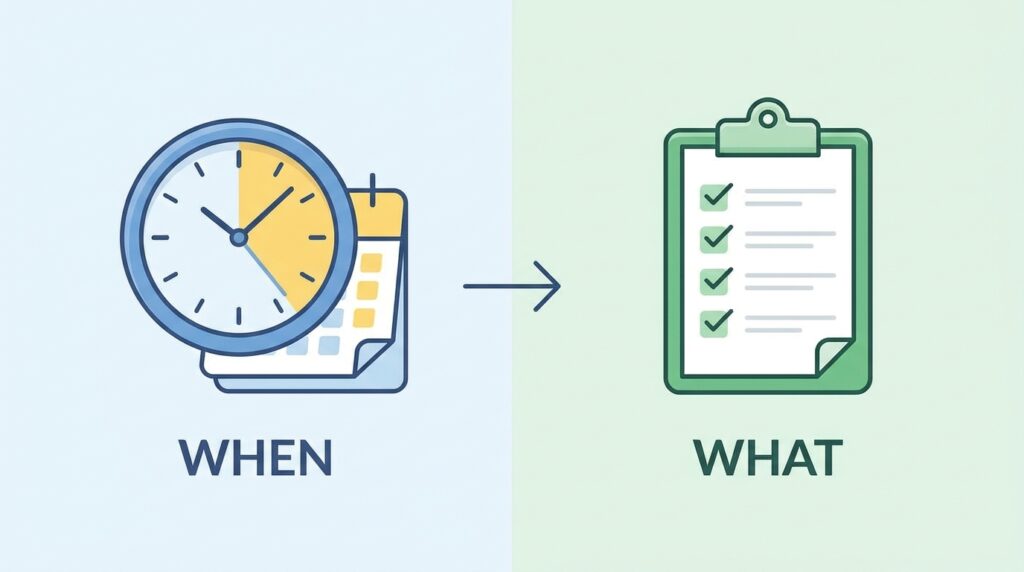
A calendar answers one question: when. A task manager answers a different one: what, and how much. Trying to force one tool to do both jobs is where most systems break down — calendars get cluttered with vague to-dos that never had a real time slot, and task lists balloon with items that were never actually scheduled.
The right free calendar and task management combination keeps those two questions separate but connected. Your calendar shows your day at a glance; your task list holds everything that hasn’t been scheduled yet. Neither one has to do the other’s job, which is exactly why the pairing works better than any single all-in-one app usually does. It also means you can swap out one half of the system — say, moving from Todoist to TickTick — without rebuilding your entire workflow from scratch, since the calendar side stays untouched.
What to Look For Before You Pick Tools
Before choosing specific apps, it helps to know what actually matters in a free calendar and task management system, rather than picking whatever’s most popular.
- Cross-device sync. If it doesn’t update instantly across your phone, laptop, and browser, you’ll stop trusting it within a week.
- Recurring tasks and events. Weekly client calls, monthly invoicing, daily habits — these need to repeat automatically, not get manually re-entered.
- A free tier that isn’t crippled. Some “free” task apps cap you at a handful of active projects or hide recurring tasks behind a paywall. Check the limits before building your whole system around one.
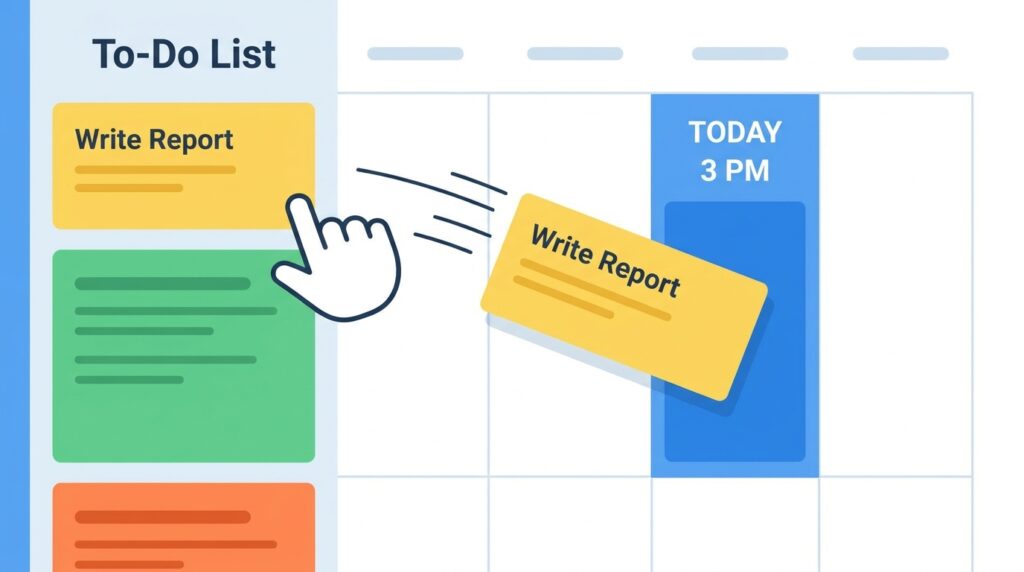
- Some way to connect calendar and tasks. Even a manual habit of blocking time for tasks works, but tools that let you drag a task straight onto a calendar slot save real time.
Google Calendar: The Free Calendar Backbone
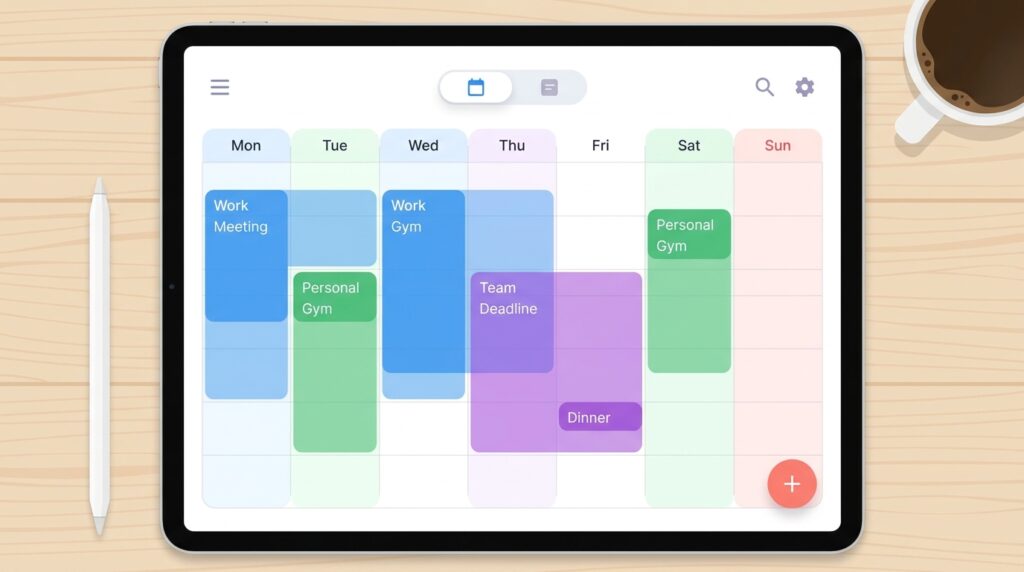
For most people, Google Calendar remains the most reliable free calendar tool simply because it’s already connected to email, video calls, and most scheduling tools freelancers use with clients. It supports multiple calendars layered on top of each other (client meetings, personal, deadlines), color-coding, and reminders that actually show up on your phone.
Best for: Anyone who needs a shared, reliable calendar that clients and collaborators can also see or book into.
Notion: A Flexible Task and Project Hub
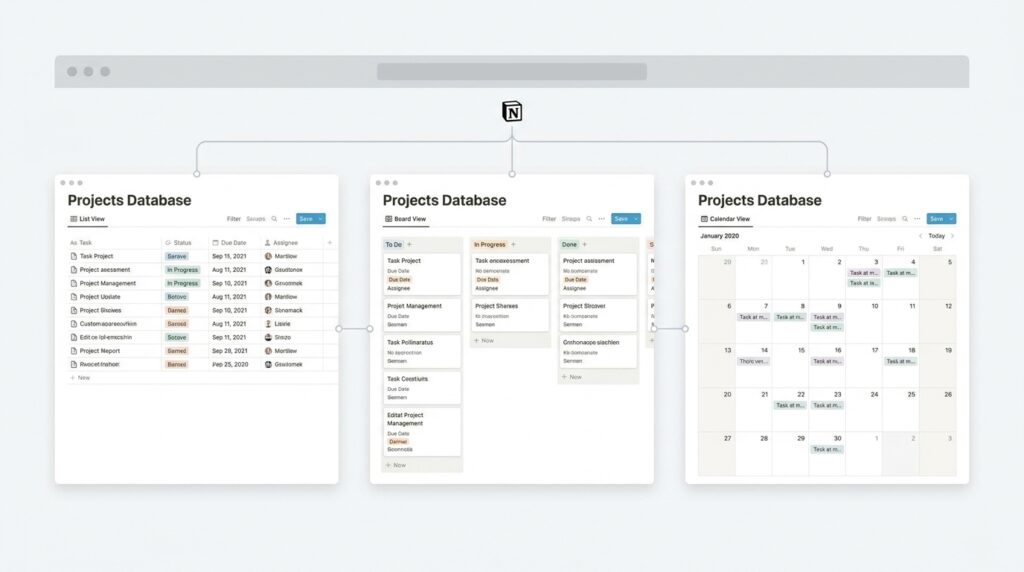
Notion isn’t a calendar-first tool, but its database-and-view system makes it one of the more capable free options for task management once it’s set up properly. A single task database can be viewed as a list, a board, or a calendar, meaning tasks with due dates automatically show up alongside your other planning views.
Best for: Freelancers who want tasks, notes, and project details living in the same connected workspace rather than scattered across separate apps.
Todoist: The Dedicated Task Manager
Where Notion is flexible, Todoist is fast. It’s built purely around tasks, with natural-language due dates (“every Monday,” “next Friday at 3pm”), priority flags, and a genuinely useful free tier that covers recurring tasks and basic project organization.
Best for: People who want a task list that’s quick to add to throughout the day without opening a full workspace app.
TickTick: Calendar and Tasks in One Free App
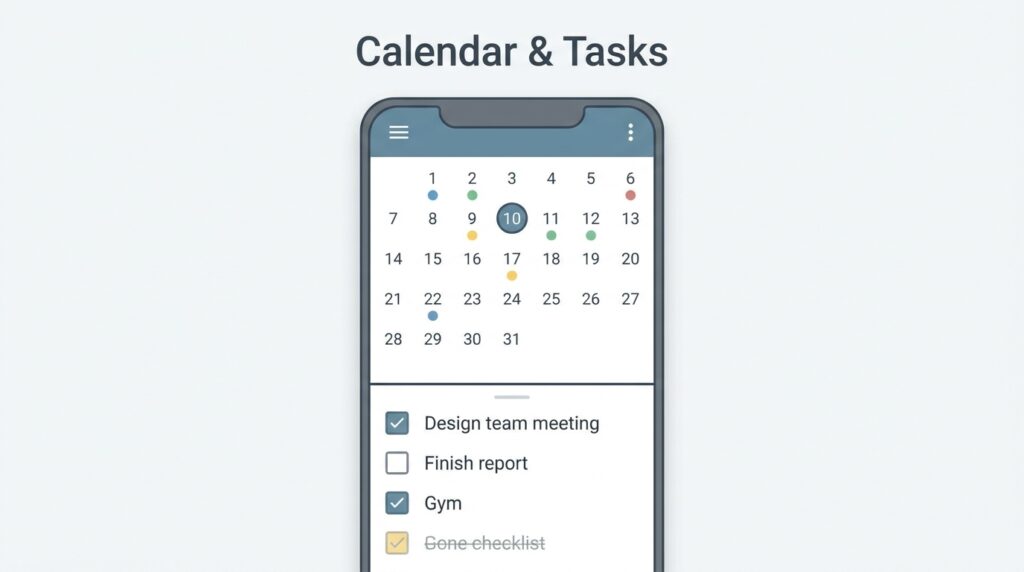
TickTick is one of the few tools that handles both halves of a free calendar and task management setup inside a single free app. It includes a built-in calendar view, a Pomodoro timer, habit tracking, and task lists that can sync with your device calendar. For people who’d rather not manage two separate apps, TickTick is the closest thing to an all-in-one free solution that doesn’t feel limited.
Best for: Anyone who wants calendar and tasks combined without paying for a premium plan.
Trello: Visual Task Management for Project-Based Work
Trello’s board-and-card system works especially well for people who think visually or manage multiple ongoing projects at once. Cards can carry due dates, checklists, and labels, and boards can be shared with clients or collaborators for full transparency on project status. Power-Ups (Trello’s free add-on system) also let you layer in calendar views and basic time-tracking without leaving the board, which narrows the gap between Trello and a dedicated task manager.
Best for: Freelancers running several client projects simultaneously who want a visual overview rather than a flat list.

Google Tasks: The Simplest Possible Option
If every other tool on this list feels like overkill, Google Tasks is worth considering purely for its simplicity. It lives directly inside Gmail and Google Calendar, meaning tasks with due dates show up right next to your events with zero extra setup. It lacks the flexibility of Notion or Todoist — no tags, no custom views, no automation — but for a lightweight free calendar and task management habit, that simplicity is often the point. Sometimes the best system is the one you’ll actually keep using, not the one with the most features.
Best for: Beginners who want the absolute lowest-friction starting point.
How to Combine a Calendar and a Task Manager Without Overcomplicating It
The core skill in any free calendar and task management setup isn’t picking the “best” app — it’s building a habit of moving items between the two correctly.
- Everything starts as a task, not an event. Capture ideas, requests, and to-dos in your task manager first, unscheduled.
- Only move a task to the calendar once it has a real time commitment. If it needs 45 focused minutes, block 45 minutes. If it’s a five-minute email reply, it can stay a task.
- Review both together each morning. A five-minute daily check of your calendar and task list catches conflicts before they become missed deadlines.
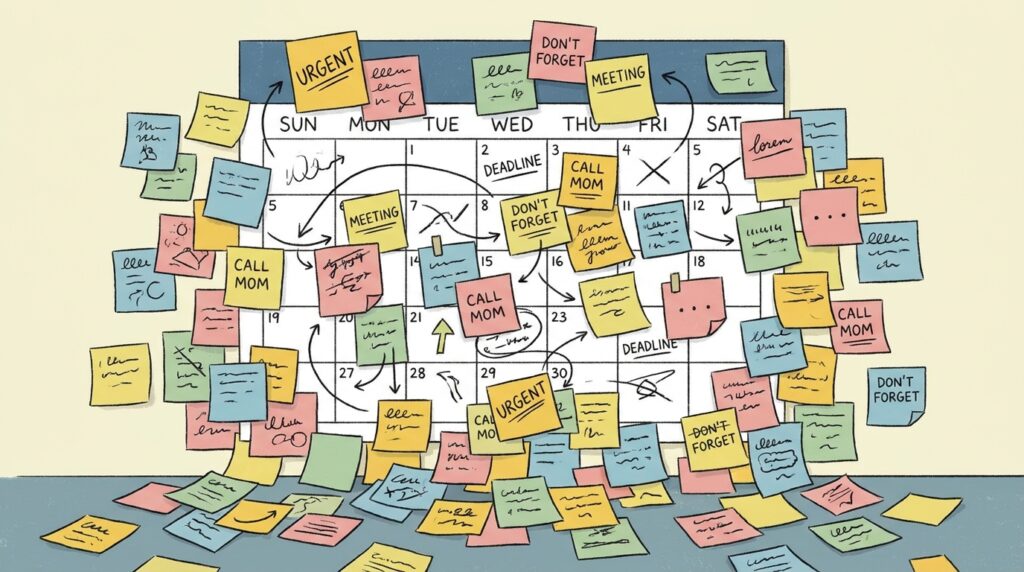
- Keep one list, not five. Scattering tasks across sticky notes, a notes app, and a task manager guarantees something gets missed. Funnel everything into one place.
Common Mistakes That Break Free Productivity Systems
Even a well-chosen free calendar and task management setup fails if a few habits creep in.
- Treating the calendar as a to-do list. Cramming vague, unscheduled tasks into calendar slots “just to remember them” defeats the purpose of having a calendar at all.
- Never reviewing or cleaning up. Old, stale tasks pile up and make the whole system feel overwhelming rather than helpful — a weekly five-minute cleanup prevents this.
- Switching tools too often. Trying a new app every few weeks resets the habit-building process each time. Pick one combination and commit to it for at least a month before judging whether it works.
- Ignoring the free tier’s real limits. Some tools throttle recurring tasks, reminders, or the number of active projects on the free plan — know the ceiling before you build your whole workflow around it.
Frequently Asked Questions
What’s the best free calendar and task management combination for freelancers? Google Calendar paired with Notion or Todoist covers most freelance needs without paying for anything, as long as you keep tasks and calendar events clearly separated.
Can one app really replace both a calendar and a task manager? Yes — TickTick and Notion both handle calendar and task views inside one workspace, though dedicated apps like Google Calendar still offer more reliable scheduling and sharing features.
How often should I review my task list? Daily for a quick check, and weekly for a deeper cleanup of stale or completed tasks that are cluttering the system.
Is it worth paying for a premium productivity app? Only once you’ve hit a real limit on the free tier — most people never need more than what the free versions of these tools already offer.
Final Thoughts
A reliable free calendar and task management system doesn’t require a subscription — it requires picking two tools that do their separate jobs well and building the daily habit of moving things between them correctly. Start simple: one calendar, one task list, a five-minute morning review. Add complexity only once you’ve actually outgrown the basics, not before.
For a deeper look at how to structure recurring project work inside a flexible workspace, see our guide to Notion templates for freelancers, which pairs well with any calendar app covered here.
To compare current free-tier limits across popular task apps before committing to one, check Todoist’s official feature comparison page, which lays out exactly what’s included at no cost.