MCP Servers & Connectors Explained: Connecting AI Agents to Your Real Work Apps
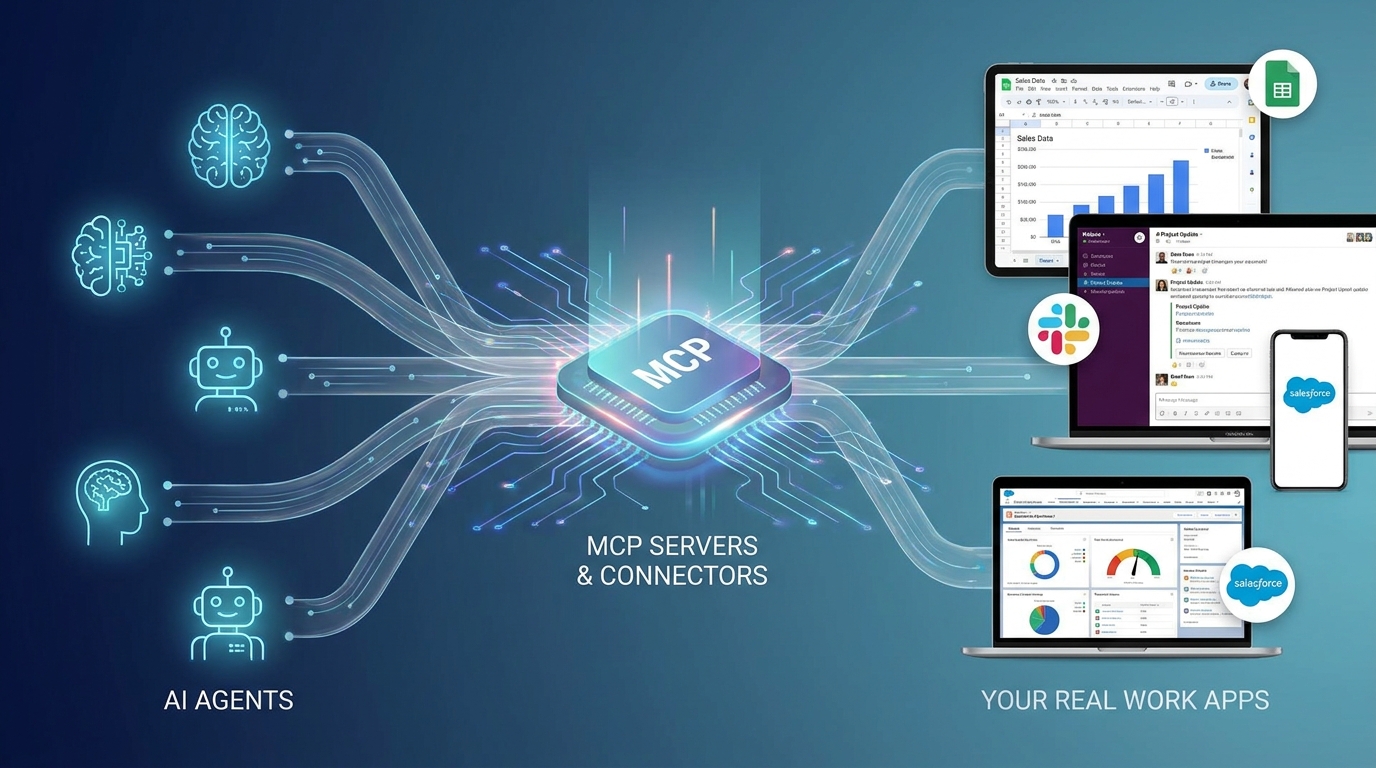
An AI assistant that can only talk is useful. An assistant that can check your calendar, pull a client file, update a task and draft a reply is far more useful, but only if it can safely reach the apps where your work actually lives. That connection is what MCP servers make possible. MCP, or the Model Context Protocol, is an open standard that lets AI agents use external tools and data through one shared interface, instead of a custom integration for every model and app pair.
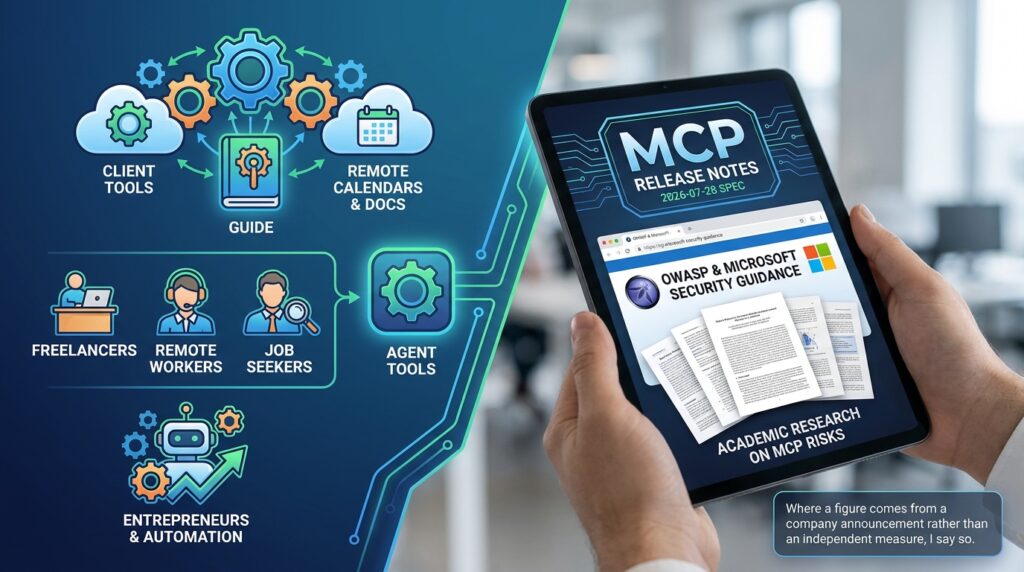
This guide is for freelancers managing several client tools, remote workers juggling calendars and documents, job seekers learning the agent tools employers now ask about, and entrepreneurs who want to automate routine work. I reviewed the official MCP release notes for the 2026-07-28 specification, security guidance from OWASP and Microsoft, and recent academic research on MCP risks. Where a figure comes from a company announcement rather than an independent measure, I say so.
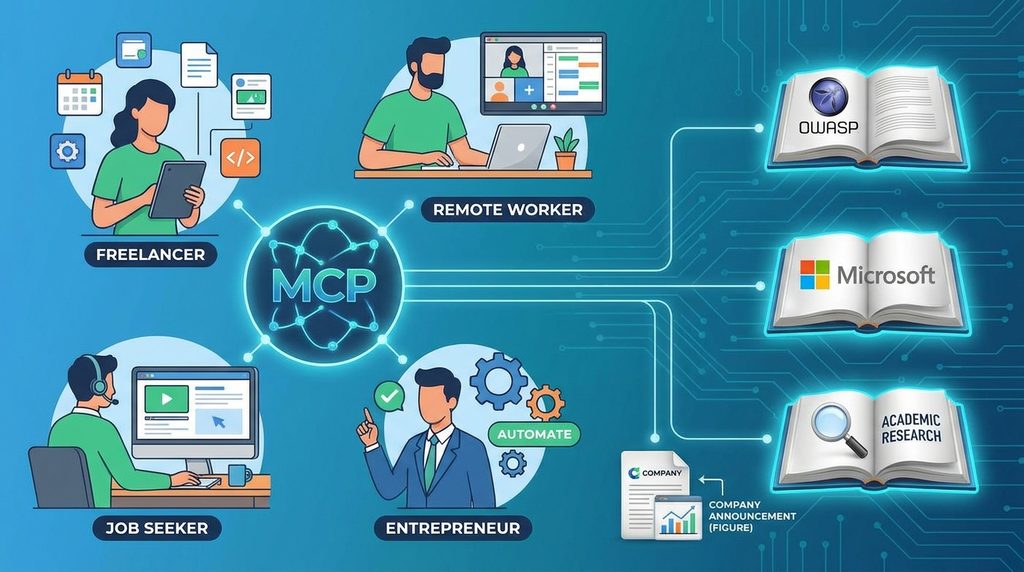
If you are deciding whether to connect an AI agent to your work apps, this article explains what MCP servers do, how the protocol changed in 2026, the security risks you must plan for, and a six-layer checklist to follow before you connect anything.
What Are MCP Servers?
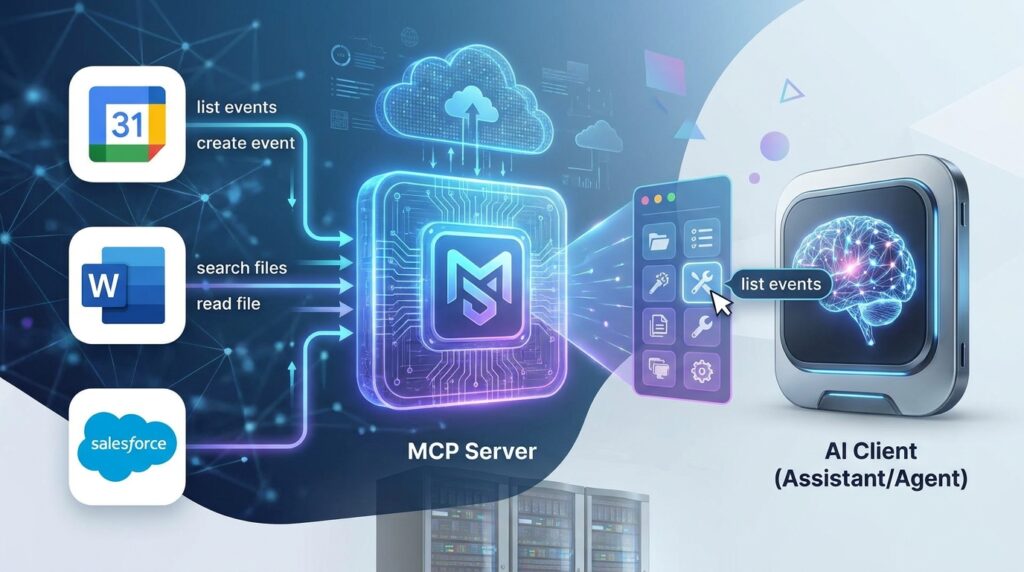
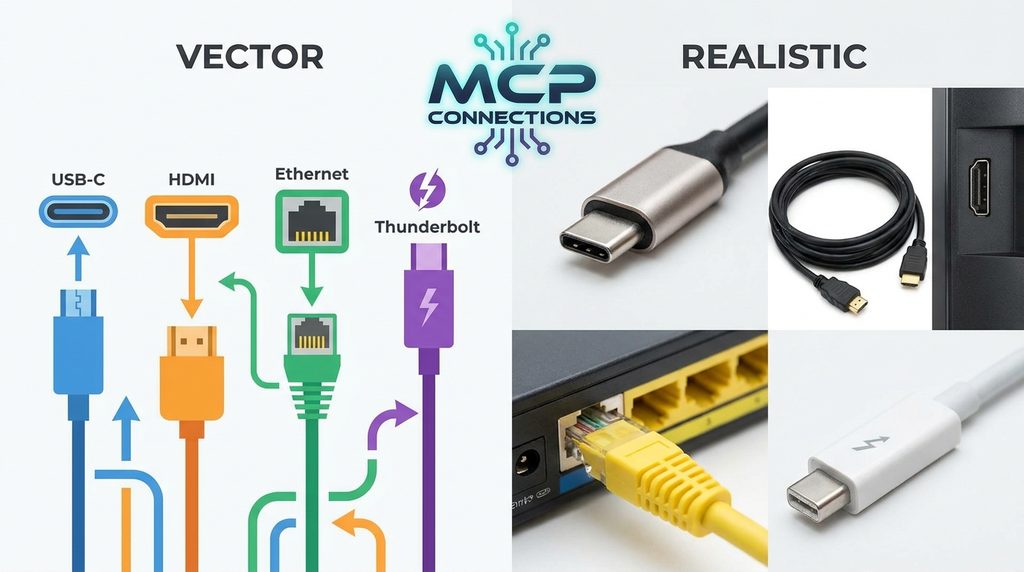
MCP servers are small services that expose tools, files or data from an app to an AI client in a standard format. The AI client, such as an assistant or coding agent, discovers what each server offers and can call those tools when a task needs them. A calendar server might offer “list events” and “create event.” A document server might offer “search files” and “read file.”
Think of an MCP server as an adapter. Each app needs one adapter, and any compatible AI client can use it. Before the standard, developers often had to build a separate integration for every combination of model and tool, which made connections slow to build and hard to maintain.
Two terms are often confused:
- MCP server: the component that exposes an app’s capabilities.
- Connector: the user-facing way to add that server to an AI product, usually with a sign-in step and permission prompts.
The protocol is also growing quickly. Anthropic reported in a 2026 announcement that MCP had surpassed 400 million monthly SDK downloads, a fourfold increase within the year. Claude’s connectors directory listed more than 950 MCP servers at the time of that announcement. Company-reported usage figures like these show momentum, but they do not measure how well any individual server works.
How the 2026 Update Changes Things
The most important recent change is the MCP 2026-07-28 specification, which the project’s maintainers describe as the largest revision since the protocol launched. The headline change is a stateless core. Earlier versions relied on a live session between client and server. The new version treats each request as self-contained, so it can run on ordinary web infrastructure behind standard load balancers.
In practical terms, that means:
- Servers can be deployed on the same kinds of infrastructure as regular web APIs.
- Teams can scale a server without managing session storage.
- Long-running work moves into a formal Tasks extension.
- Interactive interfaces can be delivered through an MCP Apps extension.
The Register reported that the update also added a deprecation policy, clearer lifecycle rules and a security fix for OAuth mix-up attacks. Those details matter if you maintain a server or rely on one for client work, because older implementations may need updating.
For non-developers, the takeaway is simple: the protocol is maturing, and more apps are likely to offer MCP connections. Maturity does not eliminate risk, however, which is why the security sections below matter.
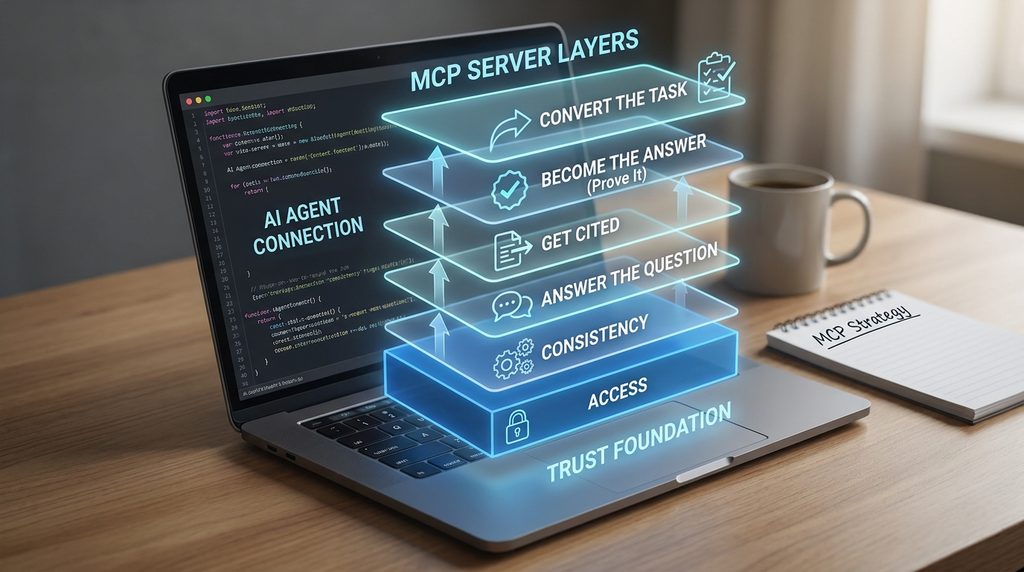
How to Connect MCP Servers in Six Layers
Connecting an AI agent to work apps works best from the foundation up. Skip the first layer and every later layer becomes harder to trust.
Layer 1: Access
What to do: Decide exactly which apps the agent may reach, and grant the smallest permissions that let it do the job.
How to do it: Start with read-only access. Use the sign-in and permission screens in each connector to limit scopes. Avoid connecting every app you own on day one.
Why it matters: The OWASP MCP guidance highlights excessive permissions as a major risk. If an agent can see everything, a single mistake or malicious input can expose everything.
Example (illustrative): A freelance designer connects a calendar in read-only mode so the assistant can suggest meeting times, but does not grant permission to send invitations until she has reviewed a draft.
Layer 2: Consistency
What to do: Use one identity and one source of truth for each type of information.
How to do it: Use a single work account for connectors, and designate one folder or project tool as the master for client files. Remove duplicate connections to old accounts.
Why it matters: If the agent reads two versions of a client brief, it may combine them into a wrong answer.
Example (illustrative): A small agency connects its project board and deletes an outdated spreadsheet connection, so task status comes from one place.
Layer 3: Answer the Question
What to do: Define the specific tasks you want the agent to handle before you connect a tool.
How to do it: Write three to five sentences describing a repeated task, such as “Each Monday, summarize open tasks from the project board and list items due this week.” Then connect only the apps that task requires.
Why it matters: Clear use cases reduce unnecessary access and make results easier to check.
Example (illustrative): A remote operations assistant lists the three workflows that take the most time, then connects only the apps needed for those workflows.
Layer 4: Get Cited
What to do: Make sure every action and summary can be traced back to its source.
How to do it: Ask the agent to name the document, email or record behind each answer. Check whether the connector keeps activity logs, and review them for sensitive actions.
Why it matters: Traceable answers are easier to correct and easier to trust, especially when client information is involved.
Example (illustrative): A bookkeeper asks the assistant to summarize unpaid invoices and include the invoice number and source system for each line.
Layer 5: Become the Answer (Prove It)
What to do: Test each connection on realistic tasks before relying on it.
How to do it: Create a short test list with known correct answers. Run it weekly for a month, and log any errors or unexpected actions. Watch for tool results that contain instructions the agent should not follow.
Why it matters: Academic work on MCP clients has reported significant weaknesses in how some clients validate tool descriptions. Testing reveals problems that marketing pages will not.
Example (illustrative): A consultant runs ten standard scheduling requests through a new calendar connector and finds that one time zone is handled incorrectly, which she fixes before the next client call.
Layer 6: Convert the Task
What to do: Keep approvals for high-impact actions, and let routine tasks run quickly.
How to do it: Allow automatic reading and drafting. Require a person to confirm any action that sends messages, spends money, deletes data or shares files outside the team.
Why it matters: Human approval turns a convenient assistant into a supervised one.
Example (illustrative): A marketing freelancer lets the agent draft client update emails, but sends each one only after she clicks approve.
The chain to remember is: Access → Consistency → Clear Tasks → Traceable Actions → Tested Reliability → Approved Outcomes.
Popular Connector Types Compared
The table below groups the main kinds of MCP connections you are likely to see. Availability depends on your AI product and account, and every connector’s features change over time, so verify details in the vendor’s documentation.
| Connector type | Example apps | Good for | Check before connecting |
|---|---|---|---|
| Email and calendar | Gmail, Google Calendar | Summarizing inboxes, finding meeting times | Read-only first; confirm before sending |
| Files and documents | Google Drive, shared drives | Finding files, summarizing documents | Limit to client folders you are allowed to share |
| Design | Canva | Drafting visual outlines, reusing brand assets | Check ownership and brand permissions |
| SEO and marketing data | Ahrefs | Keyword research, competitor summaries | Confirm data limits and subscription level |
| Developer tools | Code hosts, issue trackers | Reviewing issues, drafting pull request notes | Restrict write access to protected branches |
| Databases and spreadsheets | Reporting tools, shared sheets | Summarizing figures | Never grant write access to live financial data by default |
For a freelancer, the best starting point is usually a single low-risk connector such as calendar or documents, used for one clearly defined task. Expand only after the first connection has passed your tests for a few weeks.
Common Mistakes to Avoid
- Installing every connector at once. A large set of permissions creates a large blast radius. Solution: Start with one or two connectors and add more only when a specific task needs them.
- Granting write access by default. Read access solves most early needs. Solution: Enable write permissions one action at a time, with approval.
- Trusting tool output blindly. Emails, documents and web pages can contain hidden instructions. Solution: Treat every tool result as data, and require human approval before any high-risk action.
- Connecting client data without permission. Client agreements may restrict where data can go. Solution: Check your contracts and the vendor’s data terms before connecting any client folder.
- Ignoring updates. The 2026-07-28 specification includes security and lifecycle changes. Solution: Review connector updates and remove any server you no longer use.
Useful Tips for Beginners
Start your first connection on a task that is annoying but low-risk, such as summarizing your calendar for the week. This builds familiarity without exposing sensitive work.
- Choose one repeated task that takes at least 15 minutes a week.
- Connect the single app that task needs, using read-only access.
- Write ten test questions with answers you already know, and run them.
- Review every action the agent takes for the first two weeks.
- Add write permissions only for steps you have checked and want to automate.
For more practical guides on AI tools for freelancers and small businesses, visit Digital Task Compass. Keep a simple written log of which connectors you have, what each can access and when you last reviewed it.
Frequently Asked Questions
Are MCP servers safe to use with work apps?
They can be, when configured carefully. OWASP’s guidance for MCP lists risks such as unauthenticated tool access, excessive permissions and prompt injection through tool results. Use least-privilege access, approval for sensitive actions and regular reviews.
Do I need to be a developer to use MCP servers?
Not for many everyday uses. Connectors in consumer AI products are designed to be added through a sign-in flow. Building or maintaining your own MCP server does require development skills.
Will connecting an AI agent to my apps save me money or time?
It may save time on repetitive tasks, but results vary widely by workflow. Measure a baseline first, such as how long a weekly report takes, then compare after a trial period. Avoid assuming savings in advance.
Is learning MCP useful for my career?
Interest in agent tools is growing, and MCP is now widely adopted across the industry, with support from several major AI and cloud providers. That is a signal of relevance rather than a guarantee of jobs, clients or income, so treat it as one part of a broader skill set.
Final Thoughts on MCP Servers
MCP servers turn AI assistants from conversation partners into workers that can reach your real tools. The protocol is now more mature, with a stateless core and formal extensions, and the connector ecosystem has grown rapidly. That progress brings responsibility. Every connection is a decision about who or what can see and change your information.
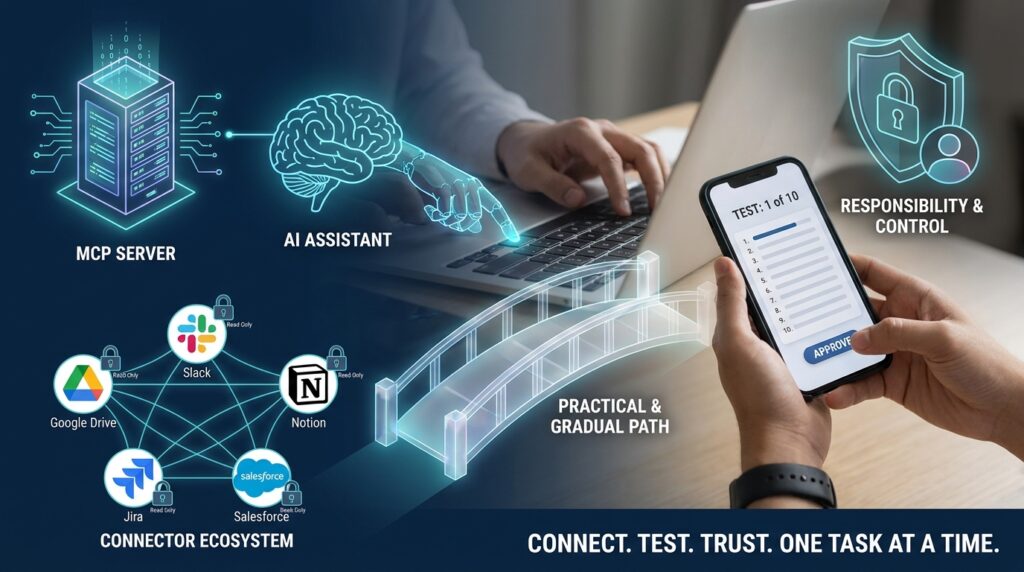
The safest path is practical and gradual. Choose one task. Connect one app with the smallest permissions. Test it on known answers. Keep a person in charge of anything that sends, spends or deletes.
Your next step is simple. Pick one repeated task this week, connect one read-only tool, and run ten test questions before you trust the results.
- Start with the smallest permissions that work.
- Use one source of truth for each type of information.
- Define the task before you connect the app.
- Make answers traceable to their sources.
- Keep a human approval step for high-impact actions.
Which layer are you focusing on right now?