Building a Notion AI CRM to Manage Freelance Leads and Clients (No-Code Guide)
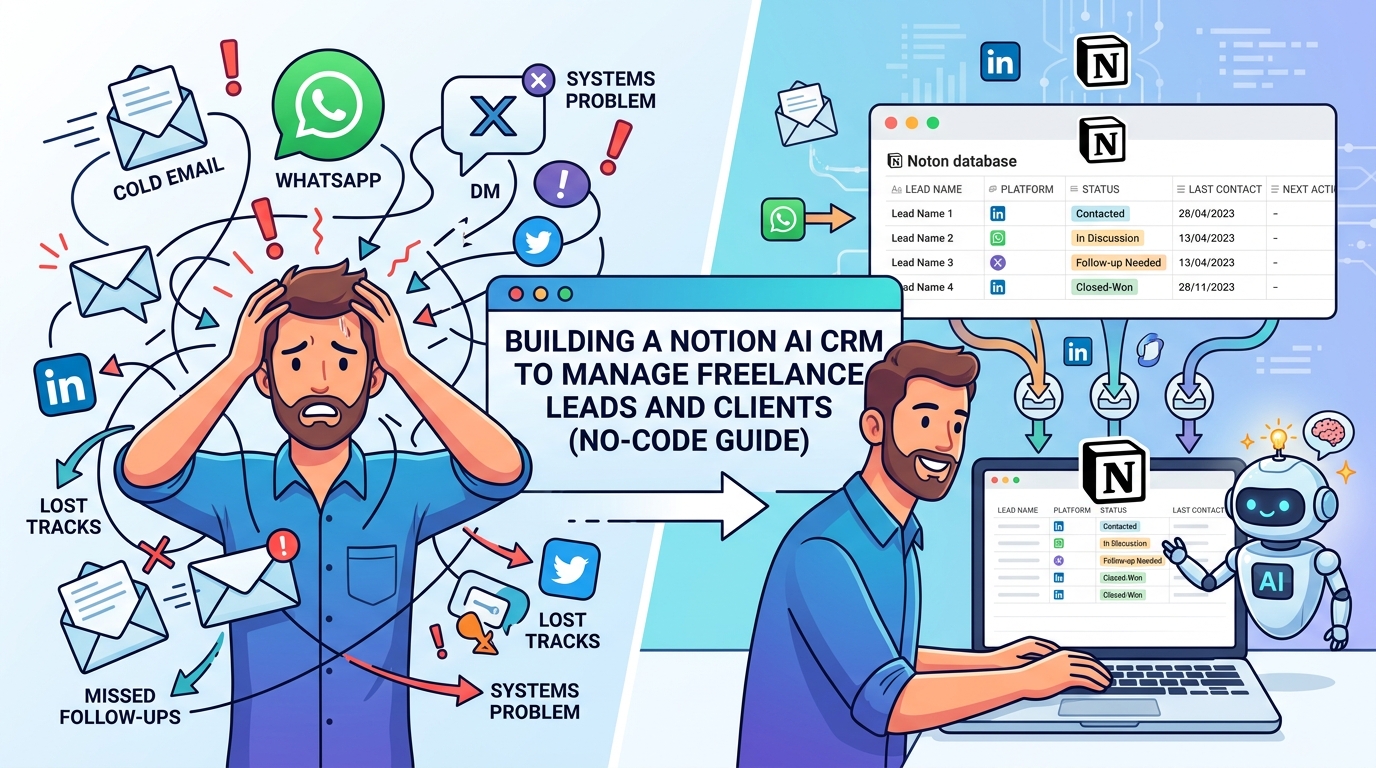
If you’re freelancing across multiple platforms, cold-emailing prospects, and juggling client conversations over email, WhatsApp, and DMs, it’s easy to lose track of who you talked to, what you promised, and when you’re supposed to follow up. That’s not a discipline problem — it’s a systems problem, and it’s exactly what a lightweight CRM is meant to solve.
You don’t need an expensive sales platform to fix this. A Notion CRM for freelancers gives you most of the same benefits — tracking leads, logging client details, setting follow-up reminders — without a monthly subscription or a steep learning curve, since you likely already have a free Notion account.
In this guide, we’ll build one from scratch, step by step, using Notion’s databases and AI features. No coding, no complicated automation platforms — just a practical system you can set up in an afternoon and actually stick with.
What Is a Notion CRM for Freelancers?
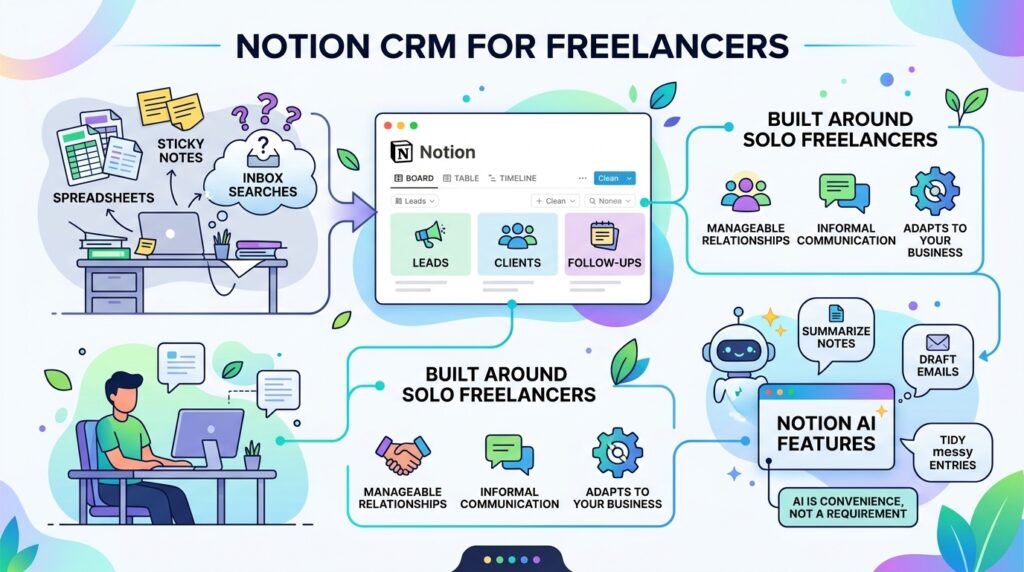
A Notion CRM for freelancers is a customized database inside Notion that replaces scattered spreadsheets, sticky notes, and inbox searches with one organized system for tracking leads, clients, and follow-ups.
Unlike dedicated CRM software built for sales teams, a Notion-based system is built around how solo freelancers actually work: a manageable number of relationships, informal communication channels, and the need for something flexible enough to adapt as your business changes.
Notion’s built-in AI features can add extra value here — summarizing long client notes, drafting follow-up email text based on your logged details, or tidying up messy entries — but the AI is a convenience layer on top of the core system, not a requirement to get started.
Step-by-Step Guide: Building Your Notion CRM
Step 1: Set Up Your Core Database Structure

What to do: Create a new Notion database (table view) with one row per lead or client.
How to do it: In Notion, click “+ New Page,” select “Table,” and name it something like “Client & Lead Tracker.” Add these core columns to start:
- Name (contact or business name)
- Status (Lead, Contacted, In Discussion, Client, Past Client)
- Source (referral, LinkedIn, cold outreach, marketplace, etc.)
- Contact Info (email, phone, or platform username)
- Last Contact Date
- Next Follow-Up Date
Why it matters: A clear structure from the start prevents your Notion CRM for freelancers from turning into another messy list. These six fields cover the essentials most freelancers need without overcomplicating things on day one.
Example: A freelance copywriter picking up clients from Upwork, referrals, and LinkedIn outreach would set “Source” as a dropdown property, making it easy to later see which channel actually brings in paying work.
Step 2: Add a Status Pipeline You’ll Actually Use

What to do: Turn your “Status” column into a Notion board (Kanban) view so you can visually track where each lead sits in your pipeline.
How to do it: Click “+ Add a View,” choose “Board,” and group by the Status property. Drag cards between columns — Lead, Contacted, In Discussion, Client, Past Client — as relationships progress.
Why it matters: A visual pipeline makes it immediately obvious where things are stalling. If you notice ten cards sitting in “Contacted” with no movement, that’s a clear signal to follow up rather than a vague feeling that “things are quiet.”
Example: Seeing three leads stuck in “In Discussion” for over two weeks might prompt you to send a simple check-in message rather than letting them go cold by default.
Step 3: Build Individual Client Pages With Notes
What to do: Turn each database row into a full page where you log project details, conversation history, and rates discussed.

How to do it: Click into any row to open it as a page. Add a simple template with sections like “Project Scope,” “Rate/Budget Discussed,” “Key Conversation Notes,” and “Files/Links.” Duplicate this structure (or set it as a database template) so every new entry starts consistent.
Why it matters: Six months from now, you won’t remember what rate you quoted a specific client or what they said about their timeline. Having it logged prevents awkward “wait, didn’t we already discuss this?” moments — and looks more professional when you can reference details accurately.
Step 4: Use Notion AI to Summarize and Draft Follow-Ups

What to do: Use Notion’s built-in AI features to condense long notes and speed up follow-up writing.
How to do it: After a call or long email thread, paste your raw notes into the client’s page, then use Notion AI to summarize them into a few clear bullet points. You can also prompt it to draft a short follow-up email based on your notes (“Draft a polite follow-up referencing the November 3rd budget discussion”).
Why it matters: This is where a basic spreadsheet CRM falls short and a Notion CRM for freelancers with AI support pulls ahead — it turns messy raw notes into something usable in seconds, saving real time on admin work that doesn’t generate income.
Example: After a 40-minute discovery call, you might paste rough notes and get a clean three-bullet summary of scope, budget range, and next steps — ready to reference before your next conversation.
Step 5: Set Up Follow-Up Reminders

What to do: Make sure no lead falls through the cracks by building a simple reminder system directly into your database.
How to do it: Add a “Next Follow-Up Date” property (date type) and create a filtered view called “This Week’s Follow-Ups” that only shows entries where that date falls within the next seven days. Optionally, turn on Notion’s reminder notifications for that property.
Why it matters: Most lost freelance opportunities aren’t lost because the client said no — they’re lost because nobody followed up. Building this reminder directly into your Notion CRM for freelancers removes the guesswork of remembering who needs a nudge.
Step 6: Track Revenue and Project Status Alongside Contacts
What to do: Add a lightweight project or invoice tracker linked to your client database.
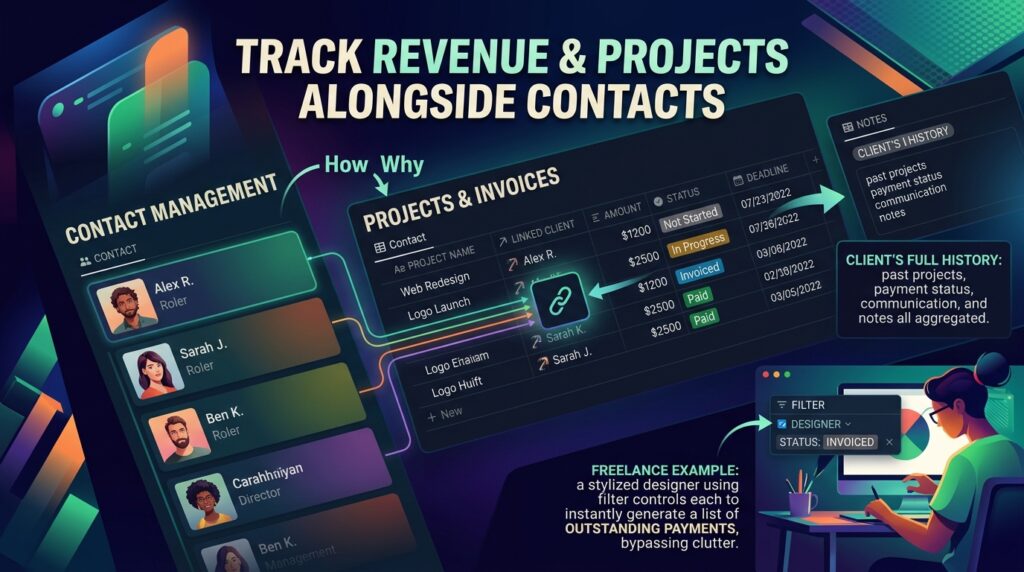
How to do it: Create a second, related database for “Projects” with columns for Project Name, Linked Client, Amount, Status (Not Started, In Progress, Invoiced, Paid), and Deadline. Use Notion’s “Relation” property to connect each project back to its client entry.
Why it matters: Separating contact management from project and payment tracking keeps each database focused, while the relation link still lets you see a client’s full history — past projects, payment status, and communication — in one place.
Example: A freelance designer working with five active clients can filter the Projects database by “Status: Invoiced” to get an instant list of outstanding payments, without digging through email.
Step 7: Review and Clean Up Your CRM Weekly

What to do: Set aside 15–20 minutes each week to update statuses, clear completed follow-ups, and archive dead leads.
How to do it: Create a recurring calendar reminder for a “CRM review” session. During it, move stalled leads to “Past Client” or a “Not Pursuing” status, update any changed contact details, and check the “This Week’s Follow-Ups” view.
Why it matters: A CRM only stays useful if it reflects reality. Outdated statuses and forgotten leads quietly turn a useful system back into the same clutter it was meant to fix. If you’re also managing your broader task list alongside client work, it’s worth pairing this habit with a wider look at productivity and workflow tool guides to keep your whole system connected rather than scattered across separate apps.
Common Mistakes to Avoid
- Overbuilding on day one. Adding 20 columns and three linked databases before you’ve used the system for a single week usually leads to abandonment. Start simple, then expand based on what you actually need.
- Skipping the weekly review. A Notion CRM for freelancers that isn’t updated regularly becomes inaccurate fast, which defeats its purpose.
- Relying entirely on memory for status updates. If you only update the database “when you remember,” entries will drift out of sync with reality. Tie updates to actual moments — right after a call, right after sending a proposal.
- Not separating leads from active clients clearly. Mixing cold prospects with paying clients in one undifferentiated list makes it hard to prioritize who actually needs your attention.
- Treating Notion AI outputs as final. AI-drafted summaries and follow-up emails are a starting point, not a finished product — always review and personalize before sending anything to a real client.
Useful Tips for Beginners
- If you’re starting your first Notion CRM for freelancers, use a built-in template rather than building every property from scratch — you can always customize later.
- Use color-coded status tags so your Kanban board is scannable at a glance.
- Keep a “Source” field from day one — over time, this tells you which marketing or outreach channel is actually worth your effort.
- Link your CRM database to your calendar or task manager if your workflow already uses one, so follow-ups don’t live in a separate silo.
- Back up important client data periodically — Notion is reliable, but it’s good practice not to keep the only copy of critical business information in a single tool.
Frequently Asked Questions
1. Do I need a paid Notion plan to build a CRM? No. Notion’s free plan supports the databases, views, and relations needed for a solo freelancer CRM. Notion AI features may require a paid add-on depending on current pricing, so check Notion’s official pricing page before assuming AI access is included.
2. Is a Notion CRM for freelancers better than dedicated CRM software? It depends on your needs. Dedicated CRM tools (like HubSpot or Pipedrive) offer more automation and scale better for larger teams, but a Notion-based system is typically faster to set up, free or low-cost, and flexible enough for most solo freelancers managing a manageable number of relationships.
3. Can I use this system if I work with clients across different countries and time zones? Yes. Add a “Time Zone” property to your database and consider logging preferred contact hours in each client’s notes — this is especially useful if you’re working with clients across regions like the US, Europe, and Asia-Pacific.
4. Will building a CRM guarantee more clients or income? No. A CRM helps you stay organized and follow up consistently, which can improve your conversion of existing leads, but it doesn’t generate new leads or guarantee income on its own — that still depends on your outreach, positioning, and market demand.
5. How do I migrate from a spreadsheet to this system? Export your spreadsheet as a CSV file, then use Notion’s “Import” feature to convert it directly into a database. From there, add the additional properties and views described in this guide.
Final Thoughts

A Notion CRM for freelancers doesn’t need to be complicated to be effective. The goal isn’t a perfect system — it’s a simple, consistent one that keeps leads from slipping through the cracks and makes every client conversation easier to pick back up.
Start with the core database from Step 1, add the Kanban pipeline, and commit to the weekly review habit before layering on AI summaries or a linked project tracker. Build it in an afternoon, use it for a real week of client work, and adjust from there — that’s what turns a template into a system you’ll actually keep using.
According to the U.S. Small Business Administration’s guide on managing customer relationships, consistent tracking of customer interactions is one of the foundational practices for small businesses and independent contractors alike — which is exactly what a well-maintained CRM, however simple, is built to support.