
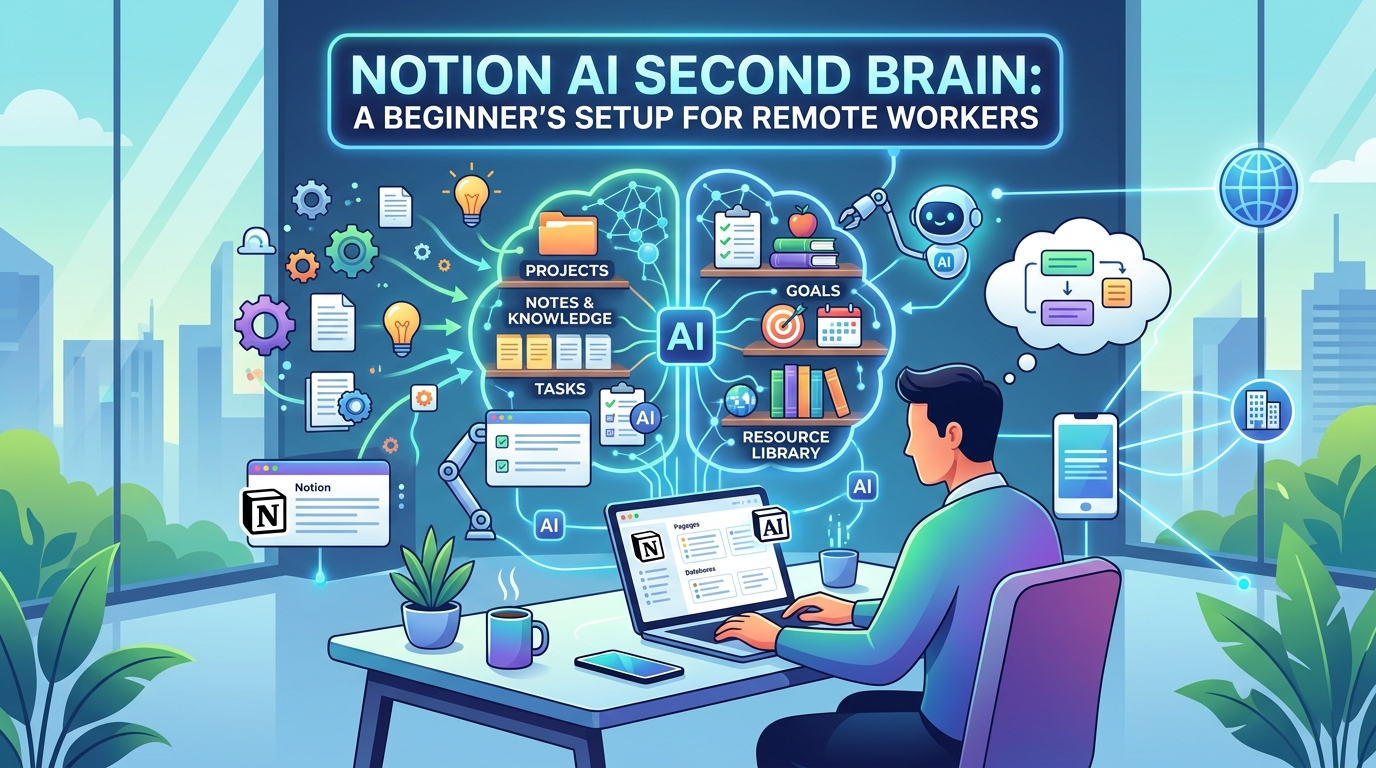
Notion AI Second Brain: A Beginner’s Setup for Remote Workers
Working remotely often means juggling scattered notes across Slack messages, email threads, random Google Docs, and half-finished to-do lists in three different apps. Nothing is lost exactly — it’s just never in the same place twice, which means you spend more time searching for information than actually using it.
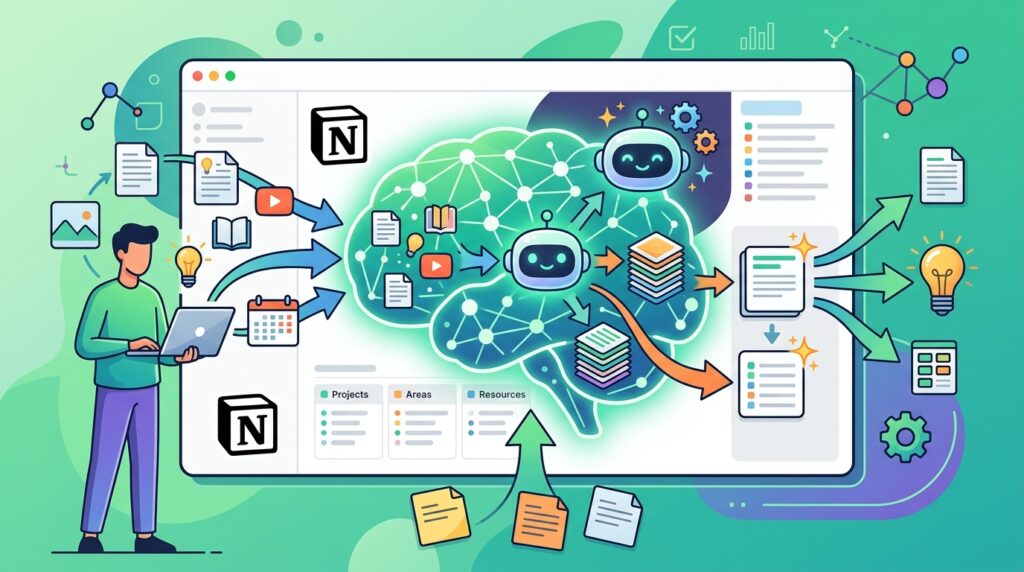
A Notion AI Second Brain solves this by giving you one structured system for capturing, organizing, and retrieving everything you learn and work on — with AI handling some of the tedious sorting and summarizing along the way. This guide walks through building one from scratch, even if you’ve never organized anything beyond a basic to-do list before.
What Is a Notion AI Second Brain?
A “second brain” is a personal knowledge management system built on the idea that you shouldn’t have to remember everything — you should have a reliable external system that captures information for you, organized well enough that you can find it again in seconds rather than minutes.

A Notion AI Second Brain applies this concept inside Notion specifically, using its databases, pages, and built-in AI features to capture notes, tasks, and ideas, then help organize and summarize them automatically. The most common underlying structure is the PARA method — Projects, Areas, Resources, Archives — a simple four-category system originally developed by productivity writer Tiago Forte.
Step-by-Step Guide: Building the System
Step 1: Create One Central “Inbox” Page for Everything
What to do: Set up a single Notion page or database where every new note, idea, or task lands first — before you decide where it ultimately belongs.

How to do it: Create a new page called “Inbox” and add a simple database with just a title and a date field. Make it the default landing spot in Notion (set it as your home page or pin it to your sidebar) so it’s always one click away.
Why it matters: The biggest reason most organization systems fail isn’t a bad structure — it’s friction at the moment of capture. If jotting something down takes more than a few seconds, you’ll skip it, and the whole system quietly falls apart.
Example: A remote project manager might capture a client’s offhand comment about future work directly into the inbox during a call, rather than trying to remember it until after the meeting ends.
Step 2: Build the Four Core PARA Categories

What to do: Create four top-level sections in your workspace: Projects, Areas, Resources, and Archives.
How to do it: Add four pages (or a single database with a “Category” property) labeled:
- Projects — anything with a specific goal and a deadline (e.g., “Redesign client website”)
- Areas — ongoing responsibilities with no end date (e.g., “Client relationships,” “Personal finances”)
- Resources — reference material and topics of interest (e.g., “SEO notes,” “Industry research”)
- Archives — completed projects or inactive areas you want to keep but not see daily
Why it matters: This structure separates active work from reference material, which is the core distinction most freelancers and remote workers never make in a plain to-do list — everything ends up mixed together, making it hard to tell what actually needs attention today.
Example: A freelance designer might file “Logo project for Client X” under Projects (it has an end date), while general brand design inspiration goes under Resources (it doesn’t).
Step 3: Set Up a Weekly Routine to Empty the Inbox
What to do: Schedule a recurring time each week to process everything sitting in your inbox into the correct PARA category.

How to do it: Block 20–30 minutes on your calendar, ideally at the start or end of your work week. Go through each inbox item and either move it into Projects, Areas, or Resources, complete it if it’s a quick task, or delete it if it’s no longer relevant.
Why it matters: An inbox that never gets emptied becomes just another cluttered list — the same problem you were trying to solve in the first place. The weekly review is what keeps a Notion AI Second Brain actually functional rather than becoming digital clutter.
Step 4: Use Notion AI to Summarize and Tag Captured Notes
What to do: Let Notion AI help condense long notes and suggest relevant tags as you file items during your weekly review.

How to do it: For longer notes — meeting transcripts, long articles you’ve saved, or messy voice-to-text captures — select the text and use Notion AI’s summarize function to generate a short digest at the top of the page. Add a “Tags” property to your Resources database so related notes surface together later.
Why it matters: This is where the “AI” part of a Notion AI Second Brain genuinely earns its place. Manually summarizing every long note you save is exactly the kind of task that eats time without adding real value — AI handles the first pass so you can spend your attention on using the information, not reformatting it.
Example: After saving a 45-minute webinar transcript, a remote marketer might use Notion AI to generate a five-bullet summary, making the content actually skimmable during a later review instead of untouched forever.
Step 5: Connect Tasks and Deadlines to Your Projects
What to do: Give each active project its own task list, linked back to the Projects database rather than living in a separate to-do app.

How to do it: Inside each project page, add a simple sub-database or checklist for tasks with due dates. Use Notion’s “Relation” property if you want a master task view that pulls from every active project into one filtered list.
Why it matters: Keeping tasks attached to their project context means you’re never digging through a separate app to remember why a task exists or what it’s connected to.
Example: A freelance developer working on three client projects simultaneously can create a single “This Week” filtered view that only shows tasks due in the next seven days, pulled from all active projects at once.
Step 6: Practice Progressive Summarization on Resources You Revisit
What to do: For notes you find yourself returning to often, bold or highlight the most useful parts over time rather than re-reading the whole thing each time.

How to do it: When you revisit a Resources page and find a section genuinely useful, bold it. On a later visit, highlight the most important bolded sentence. Over repeated visits, this creates a note you can skim in seconds instead of re-reading in full.
Why it matters: A Notion AI Second Brain isn’t just about capturing information — it’s about making frequently used information faster to retrieve every time you return to it.
Step 7: Review and Prune the System Monthly
What to do: Once a month, step back and review whether your structure still matches how you actually work.
How to do it: Check for Projects that should have moved to Archives, Areas that no longer apply, and Resources pages you haven’t opened in months. Archive or delete anything that’s just taking up mental space rather than earning its place.
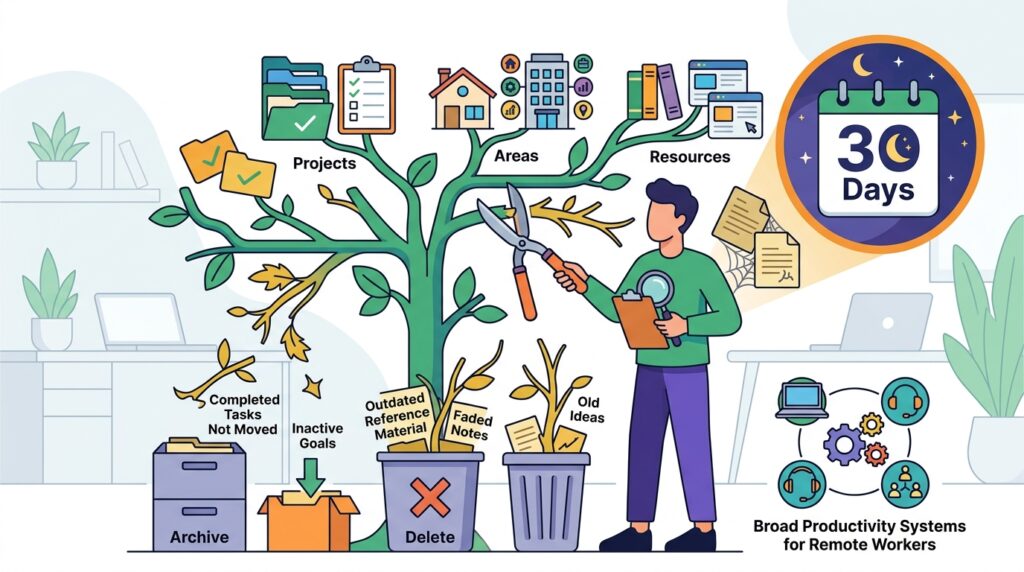
Why it matters: Systems drift out of sync with real life if they’re never revisited. A monthly prune keeps the whole setup lean enough that you’ll actually keep using it. If you’re managing this alongside other tools in your remote work setup, it’s worth pairing this system with our broader productivity systems for remote workers for ideas on keeping everything connected.
Common Mistakes to Avoid
- Over-engineering the system before using it. Adding a dozen custom properties and nested databases before you’ve captured a single real note usually leads to abandonment within a week.
- Skipping the weekly inbox review. As covered in Step 3, an inbox that’s never emptied becomes clutter, not organization.
- Treating Resources as a dumping ground. Saving everything “just in case” without ever tagging or reviewing it defeats the whole point of the system — the goal is retrieval, not accumulation.
- Relying entirely on AI summaries without reading the original when it matters. AI summaries are a helpful first pass, not a substitute for reading closely when precision genuinely matters — for a client deliverable, for example.
- Building the perfect system once and never revisiting it. As Step 7 covers, a system that isn’t periodically pruned drifts out of sync with how you actually work.
Useful Tips for Beginners
- Start with just the Inbox and PARA structure in Step 1 and 2 — don’t build out every advanced feature in your first week.
- Use keyboard shortcuts (like Notion’s quick-capture widget) to make adding to your inbox even faster on mobile.
- Keep your Archives visible but out of the way — don’t delete completed work entirely, since you’ll often need to reference it later.
- If you’re new to the underlying method, read Tiago Forte’s original explanation of the Second Brain and PARA method for the full reasoning behind the structure.
- Don’t aim for a perfect system on day one — a Notion AI Second Brain improves through use, not through planning it perfectly in advance.
Frequently Asked Questions
1. Do I need a paid Notion plan to build a second brain system? No. The core PARA structure works fully on Notion’s free plan. Some Notion AI features may require a paid add-on or higher-tier plan, so check Notion’s current pricing before assuming AI features are included.
2. How long does it take to set up a Notion AI Second Brain? The basic structure (Inbox plus the four PARA categories) can be set up in under an hour. The system becomes genuinely useful after a few weeks of consistent weekly reviews, not immediately after setup.
3. Is this system only useful for freelancers, or does it work for remote employees too? It works for both. Remote employees often use it to track ongoing responsibilities (Areas) and specific work initiatives (Projects) separately from personal notes and learning resources, keeping work and personal knowledge cleanly separated within one workspace.
4. Will this system make me more productive or guarantee career success? No system guarantees career outcomes. It can reduce time spent searching for information and reduce the mental load of remembering everything yourself, but actual productivity and career results still depend on your work quality, consistency, and circumstances.
5. What happens if I fall behind on my weekly review? Simply resume it — a missed week or two doesn’t break the system permanently. Set aside extra time on your next review to catch up on a larger inbox rather than abandoning the habit entirely.
Final Thoughts
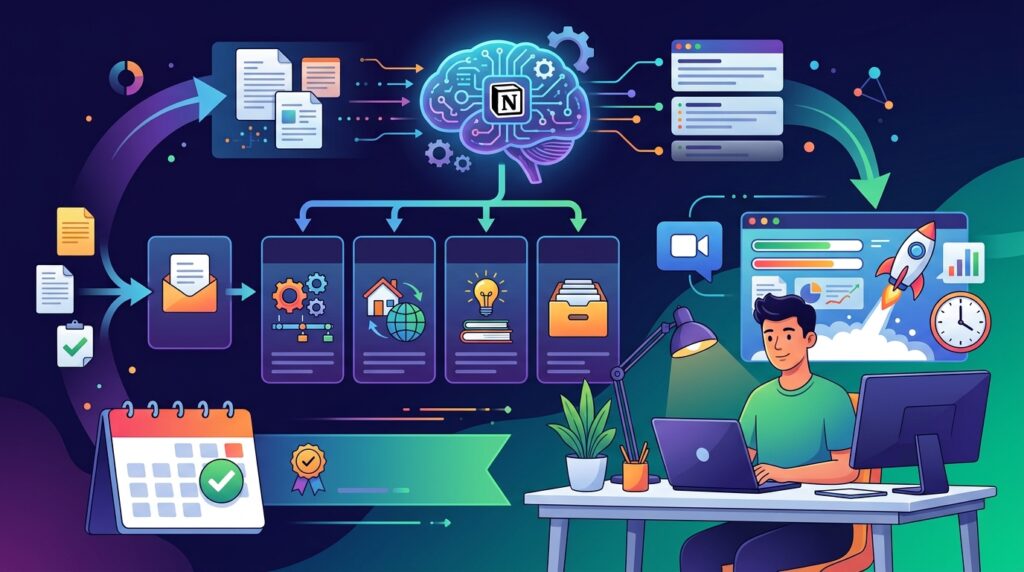
A Notion AI Second Brain isn’t about building an elaborate system for its own sake — it’s about spending less time hunting for information you’ve already captured somewhere, and more time actually using it. Start with the inbox and PARA structure, commit to the weekly review, and let Notion AI handle the tedious summarizing as you go.
Set aside an hour this week to build the basic structure, then use it for one real week of remote work before judging whether it fits — that honest test will tell you far more than reading about the method ever could.