
Best AI Meeting Notes Tool: Otter vs Fireflies vs Granola
Back-to-back video calls are part of everyday remote work, and most of what you hear slips away by the afternoon. A good AI meeting notes tool captures the conversation, summarizes the decisions, and lists action items while you stay focused on the people in the call. Otter, Fireflies, and Granola are three popular options, and each takes a different approach. This guide walks you through choosing between them one step at a time, so you pick the tool that fits your work rather than the one with the loudest marketing.
What Is an AI Meeting Notes Tool?
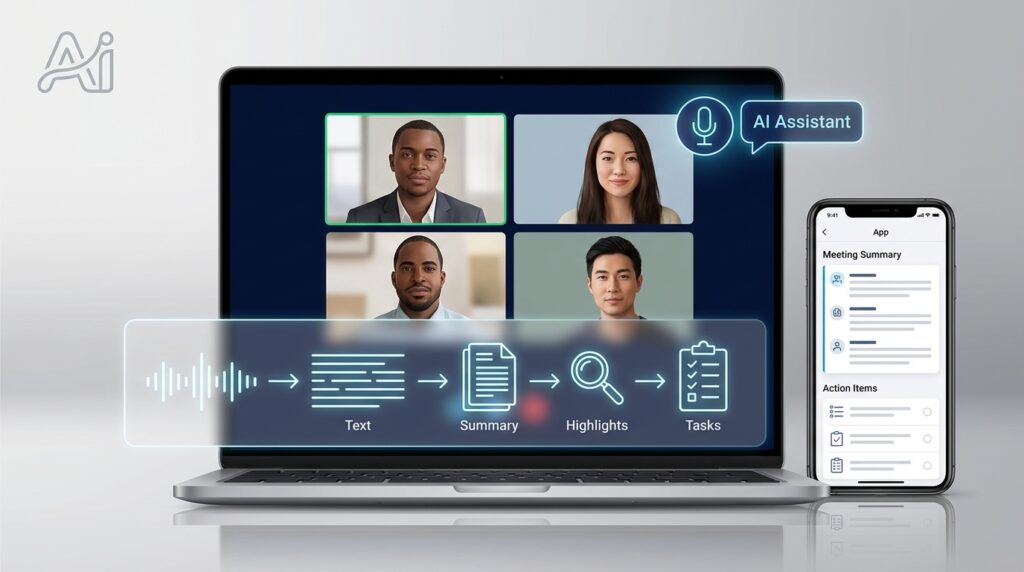
An AI meeting notes tool records or receives audio from a call, converts speech into text, and turns that text into summaries, highlights, and task lists. Some tools join your video call as a visible participant. Others run on your device without appearing in the meeting window.
Otter and Fireflies typically use a notetaker that joins the meeting. Granola works differently. It is designed as a notepad that captures audio from your computer without adding a bot to the call. Each approach has trade-offs in visibility, setup, and privacy.
These tools help with recall, but they aren’t perfect. Speech recognition can mishear names, product codes, and technical terms. Summaries can flatten nuance or assign a task to the wrong person. Treat the output as a draft you check, not a record you accept without reading.
Step-by-Step Guide
Work through these steps in order. Each one narrows your choice, and skipping ahead usually means switching tools later.
Step 1: Define the Job You Need Done

What to do: List your most common meeting types, such as client calls, team standups, interviews, or training sessions.
How to do it: For each meeting type, write the output you need most. It might be a full transcript, a short summary, a list of action items, or a searchable archive of past conversations.
Why it matters: The three tools have different strengths. A tool that excels at searching old transcripts may be unnecessary if you only need follow-up tasks after client calls. Knowing your priorities keeps you from paying for features you won’t use.
Example: A freelance designer might need client-call summaries and follow-up tasks, but not a searchable archive of every internal meeting. That points toward a tool that emphasizes summaries over long-term storage.
Step 2: Decide Whether a Visible Notetaker Is Acceptable

What to do: Decide whether participants can see a notetaker in the meeting.
How to do it: Check how your team and clients feel about recording. Ask directly in a short message before your next client call, and note whether anyone has concerns. Check whether your meeting platform already offers built-in notes that might cover your needs.
Why it matters: A bot announces itself, which is transparent but can feel intrusive in some settings. A bot-free tool keeps the call looking normal, but it depends on your device and audio setup working correctly.
Example: A remote recruiter might prefer a visible notetaker, since candidates can see that the conversation is being recorded. A consultant who runs many internal calls might prefer a bot-free notepad that doesn’t clutter the participant list.
Step 3: Compare the Three Tools on Your Priorities
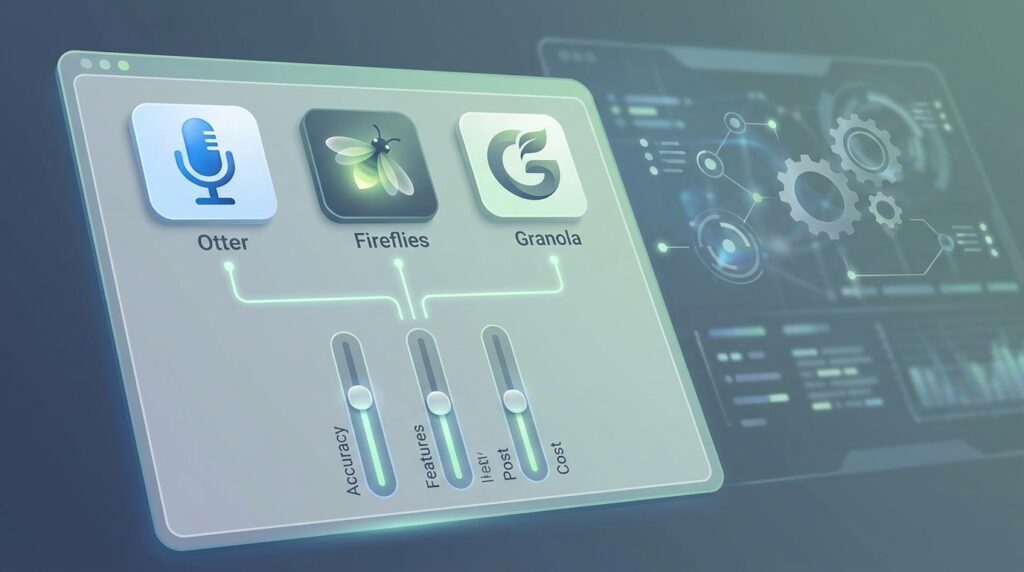
What to do: Review Otter, Fireflies, and Granola against the priorities you wrote in Step 1.
How to do it: Look at the free plan, the paid plans, and the features included in each. Pay attention to monthly limits, meeting length caps, and any features that draw on usage credits.
Otter is known for live transcription and a notetaker that joins calls. Its free plan includes a monthly minute allowance with a limit per conversation, so frequent users will likely need a paid plan.
Fireflies is a bot-based assistant with transcription, search across past meetings, and integrations with many business apps. Some advanced AI features draw on monthly usage credits on paid plans, so check what your tier includes before you rely on them.
Granola is a bot-free notepad available as a desktop and mobile app. You type your own rough notes during the call, and the app combines them with a transcript to produce a summary. Its free plan has limits, and third-party reviews from mid-2026 reported a Business tier around $14 per user per month. Confirm that figure with the vendor, because prices change.
Why it matters: Feature lists look similar until you check the limits. Matching each tool’s real constraints to your priorities gives you a fair comparison.
Example: A remote project manager who wants action items from internal standups might lean toward whichever tool includes the most generous free-plan minutes, then test that choice in Step 4.
Step 4: Test Each Tool on a Real Call
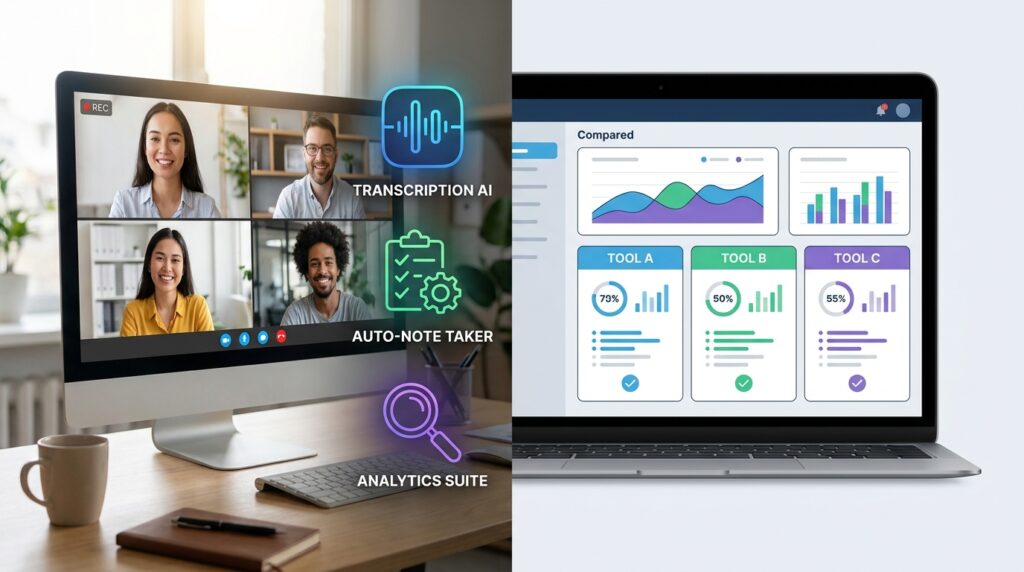
What to do: Run each tool on one real meeting you’re allowed to record, then compare the results.
How to do it: Connect each tool to your calendar or meeting platform. Record a call of at least 20 minutes, ideally one with several speakers and some interruptions. Afterward, check the transcript for accuracy, review the summary, and count how many action items were captured correctly.
Why it matters: Demos use clean audio and polished speakers. Real calls reveal how each tool handles accents, crosstalk, background noise, and unfamiliar names.
Example: A remote team lead tests all three tools on a Monday standup and notices that one tool consistently misspells a colleague’s name and another misses a deadline mentioned in passing. That single test tells her more than any comparison table.
Step 5: Check Consent and Privacy Rules
What to do: Learn the recording rules that apply to you and to the people on your calls.
How to do it: Tell participants before you start recording, and put a clear notice in your meeting invitation. Some U.S. states require every participant to agree before a call is recorded. In the UK and the EU, recordings that contain personal data fall under data protection law, including GDPR. Review each tool’s data policy to learn where recordings are stored, how long they are kept, and whether your content is used to train models. For general consumer privacy guidance, the Federal Trade Commission’s consumer advice site is a helpful starting point.
Why it matters: A recording can contain personal data, client information, and confidential business details. Skipping consent can create legal and reputational problems, even when your intentions are good.
Example: A consultant adds this line to every invitation: “This call will be transcribed using an AI notes tool. Let me know if you prefer not to be recorded.”
Step 6: Verify Action Items Before You Trust Them
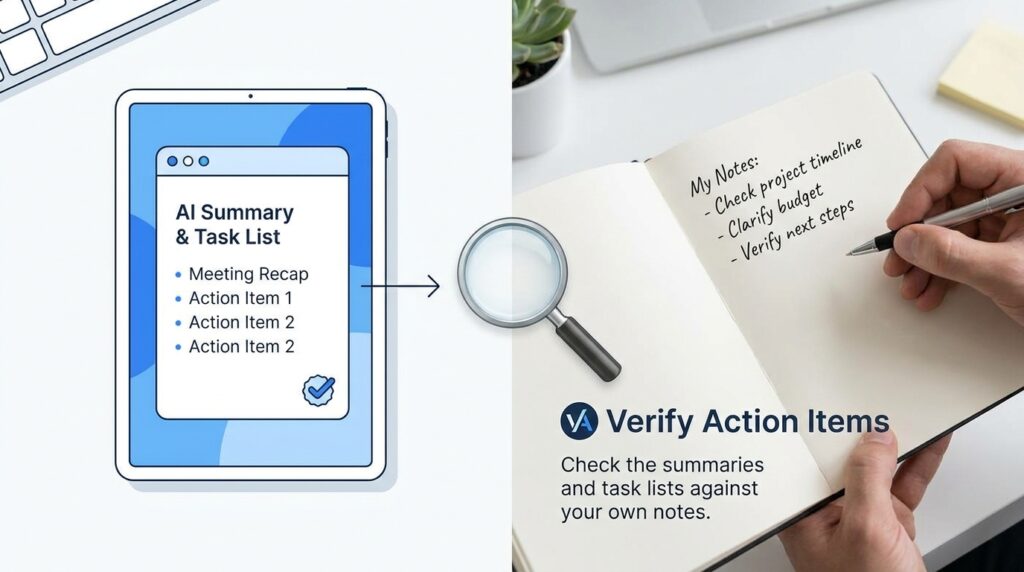
What to do: Check the summaries and task lists against your own notes for at least three meetings.
How to do it: Read the action items and confirm who owns each task and when it is due. Correct any errors, and note patterns, such as a tool that often misses owners or deadlines. Keep this check in place for as long as you use the tool.
Why it matters: Automated summaries can assign tasks to the wrong person or drop a commitment entirely. Errors in follow-up can cost you time, damage trust with clients, or delay a project.
Example: After three client calls, a freelance developer discovers that his tool attributed a deadline to the client instead of to himself. Catching that early prevents a missed delivery.
Step 7: Build a Simple Follow-Up Routine
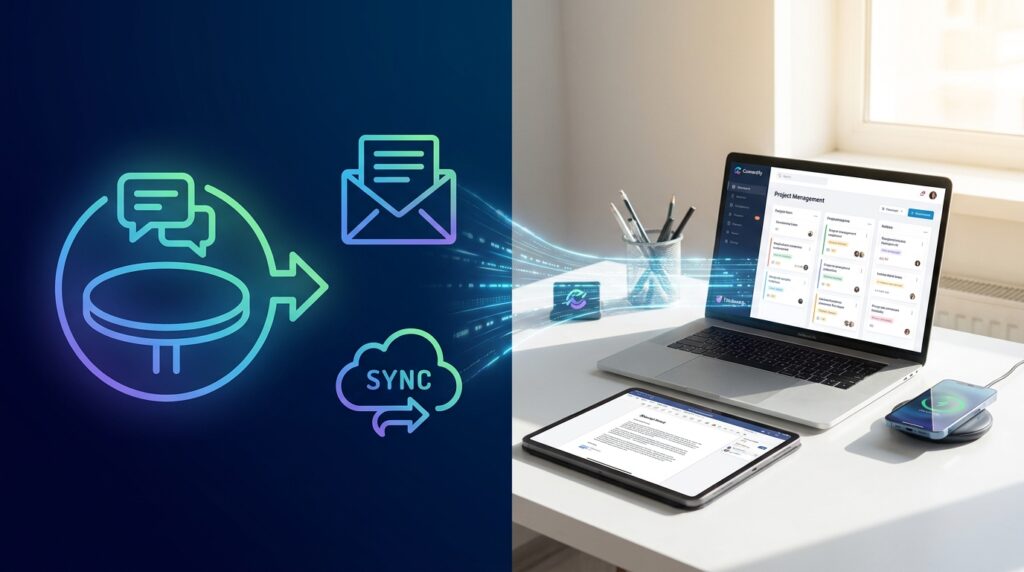
What to do: Send each meeting’s output to the place where your work already happens.
How to do it: Choose one destination, such as a shared document, a task manager, or a team chat channel. After each meeting, spend five minutes reviewing the summary, confirming the action items, and sharing the important points.
Why it matters: Notes that sit unread in an app don’t help anyone. A consistent routine turns a transcript into decisions and completed tasks.
Example: A remote marketing coordinator copies approved action items into her project board within five minutes of each call. Her clients see a clear recap, and her team never asks what was agreed.
Common Mistakes to Avoid
Choosing based only on price. A free plan can look ideal until you hit its limits in the middle of a busy week. Solution: Calculate how many meeting minutes you need each month, then compare plans against that number.
Skipping consent. Recording without telling participants can break the law in some places and damage trust everywhere. Solution: Add a recording notice to every invitation and ask for consent at the start of the call when needed.
Trusting summaries without reading them. Automated summaries can misquote people or invent a decision. Solution: Spend a few minutes checking every summary against the transcript, especially for deadlines, prices, and commitments.
Pasting confidential content into other tools. Copying transcripts into unrelated AI chat apps can expose private client data. Solution: Keep transcripts inside the tool or a secured workspace, and review each app’s data policy before sharing.
Switching tools too often. Constant testing means you never build a dependable workflow. Solution: Run a structured trial over two or three weeks, then commit to the tool that performed best.
Ignoring audio quality. Poor microphones and echoey rooms reduce transcript accuracy more than most tool differences. Solution: Use a headset with a good microphone and mute other devices during recorded calls.
Useful Tips
- Start with one trial. Test one AI meeting notes tool on your real calls for two weeks before deciding whether to upgrade or switch.
- Name speakers early. Introducing yourself and others at the start of a call helps the transcript label speakers correctly.
- Use a short meeting template. Ask participants to state decisions clearly, such as “We agreed to ship on Friday.” Clear language produces cleaner summaries.
- Compare the free plans first. Check how many minutes, meetings, or summaries you get each month before you consider paid options.
- Review your tool’s integrations. Connecting to your calendar, task manager, or document app can save more time than any single feature.
- Keep a record of errors. A simple list of mistakes helps you decide whether to keep a tool or move on.
If you want more practical guides on working efficiently as a remote professional, the practical digital skills guides at Digital Task Compass cover related topics in more depth.
Frequently Asked Questions
Is an AI meeting notes tool safe for confidential client calls?
It can be, if you handle it carefully. Tell participants about the recording, read the vendor’s data policy, confirm whether your content is used for model training, and limit who can access transcripts. For legal or contractual obligations, check with a qualified professional in your country.
Which tool is best for a small remote team?
The best fit depends on how your team meets. Teams that want a visible notetaker with search across past meetings may prefer a bot-based tool. Teams with many internal calls and a preference for discreet capture may prefer a bot-free notepad. Run a short trial with your real meetings before deciding.
Do these tools work with Zoom, Google Meet, and Microsoft Teams?
Most major tools support common meeting platforms, but support varies by plan and by how the integration works. Check the current supported platforms on each vendor’s site before you subscribe.
Can using an AI meeting notes tool help me earn more income?
It may save time on note-taking and follow-up, which could leave room for more client work or personal projects. It does not guarantee clients, income, or job offers. Think of it as a productivity aid, not a source of earnings.
Final Thoughts
The right AI meeting notes tool depends on your meeting habits, your privacy obligations, and the outputs you need most. Otter, Fireflies, and Granola each solve overlapping problems in different ways. Otter and Fireflies rely on a visible notetaker with broad features, while Granola offers a quieter, bot-free approach. The safest path is to define your needs, test on real calls, verify action items, and protect the people who appear in your recordings.
Choose one upcoming meeting this week and run a trial with one tool. Check the transcript, review the summary, and write down what you’d change. That small test will tell you more about the right AI meeting notes tool for your work than any review, including this one.