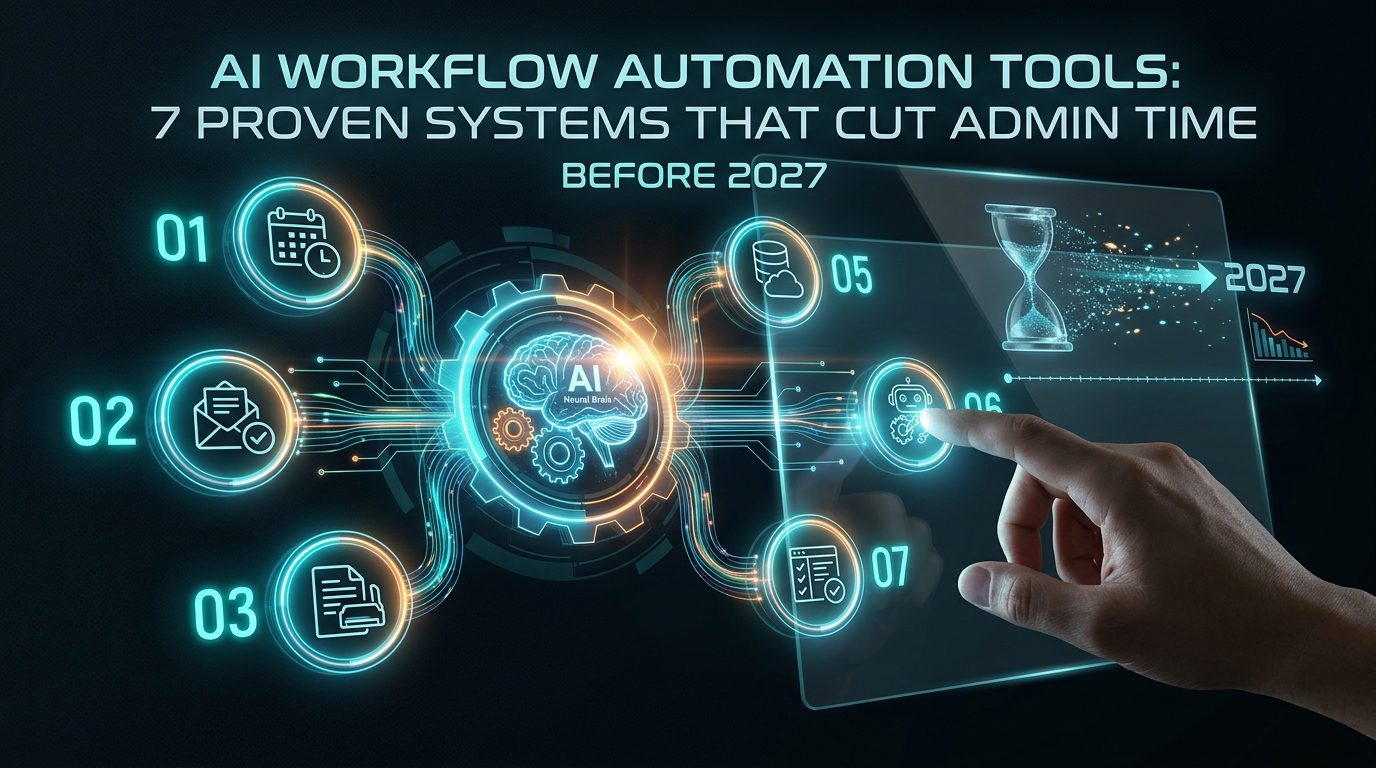
AI Workflow Automation Tools: 7 Proven Systems That Cut Admin Time Before 2027
Admin work quietly eats the best hours of the week. Meeting notes need writing up, invoices need chasing, calendars need untangling, and data needs copying from one app to another. For freelancers, remote workers, and small business owners, that busywork can crowd out the work that earns money. AI workflow automation tools promise to handle much of it. This guide reviews seven systems, explains what the evidence supports, and shows where you can use them, including the countries where access is restricted.
What Is AI Workflow Automation?
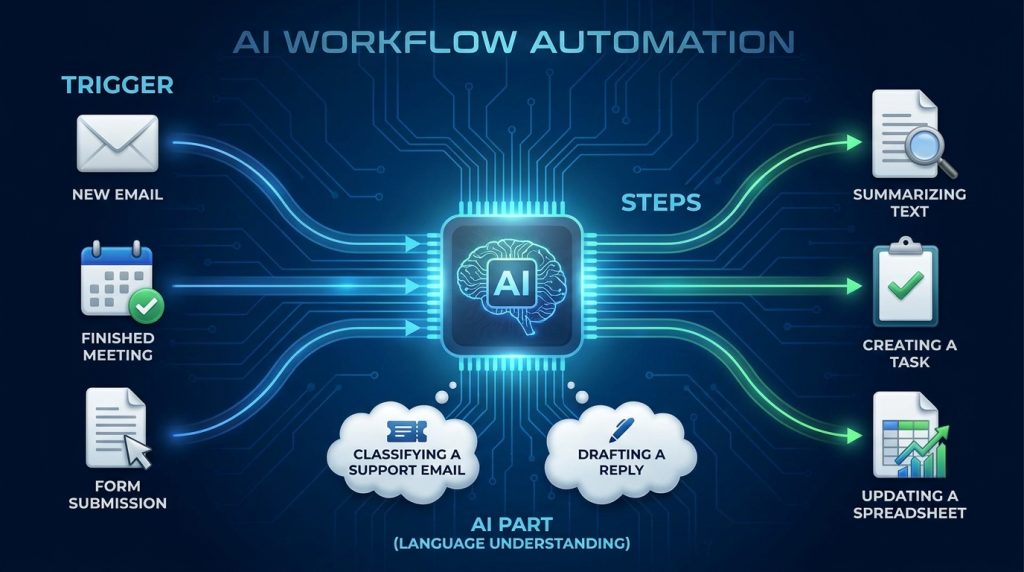
AI workflow automation connects your apps and an AI model so that routine tasks run with little manual effort. A trigger starts the process, such as a new email, a finished meeting, or a form submission. The workflow then takes steps, such as summarizing text, creating a task, or updating a spreadsheet. The AI part handles tasks that need language understanding, like classifying a support email or drafting a reply.
The tools fall into three groups. Workflow builders such as Zapier, Make, and n8n connect apps. Assistant tools such as Fireflies.ai and Reclaim.ai handle one job, like meeting notes or scheduling. Platforms such as Microsoft Power Automate and Airtable combine automation with databases and business data.
What the Evidence Says About Time Savings

Before choosing tools, it helps to know what the research supports. Here is what the 2025 and 2026 sources report, with a note on each one’s reliability.
- Scheduling savings: Reclaim.ai’s 2025 State of AI Productivity report, as summarized in a 2026 statistics roundup, reported about 3.6 hours per week saved on calendar admin across more than 8,000 users. This is vendor-produced data, so treat it as an estimate for your own use.
- Teacher admin savings: A Gallup-Walton Family Foundation survey found that teachers who used AI tools at least weekly reported saving an average of 5.9 hours per week on administrative tasks. This is survey-based and self-reported.
- Ticket resolution: A 2026 audit by TierOne IT Group, as reported by a secondary source, found that one Azure Logic Apps setup cut ticket backlog resolution time by 57 percent. This is a single case, not a general rule.
- The hidden cost of poor output: Workday’s January 2026 research found that nearly 40 percent of AI time savings are lost to fixing low-quality output. This matters most for this article’s main lesson: speed means little if you spend the saved time on corrections.
No credible source I reviewed supports the claim that AI workflow automation cuts admin time by 80 percent across the board. Results depend heavily on the task, the quality of your data, and how carefully you test.
How to Build an AI Workflow Automation Stack in 4 Steps
1. Start With the Task You Repeat Most
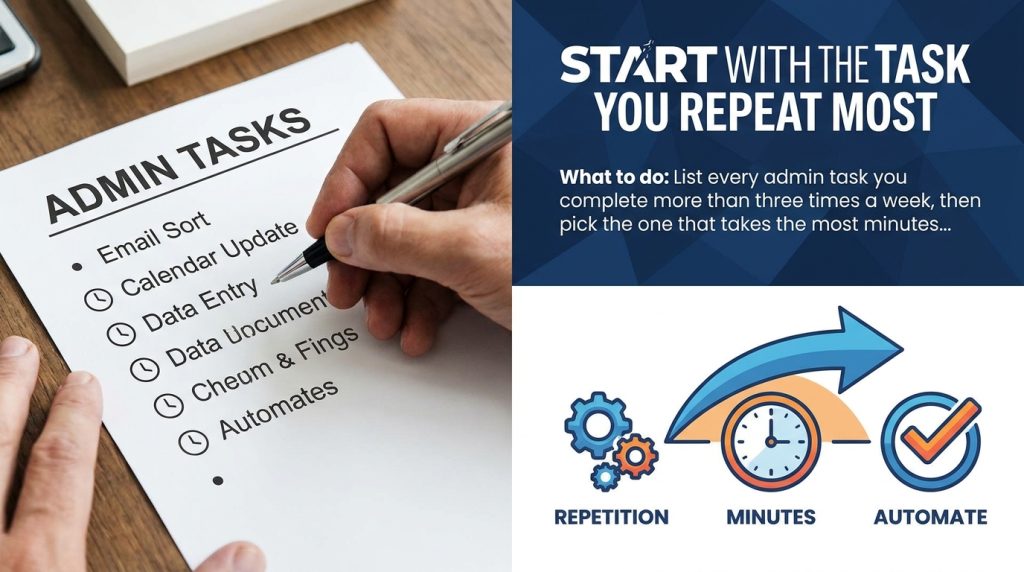
What to do: List every admin task you complete more than three times a week, then pick the one that takes the most minutes.
How to do it: Track your week for five working days. Write down each repetitive task and its time cost. Sort the list by minutes lost.
Why it matters: Automating a low-volume task saves little. Starting with the most repeated task gives you the fastest measurable return.
Example: A freelance consultant finds that writing follow-up emails after client calls takes 40 minutes a week and is the top item on the list, so that becomes the first workflow.
2. Match the Tool to the Job
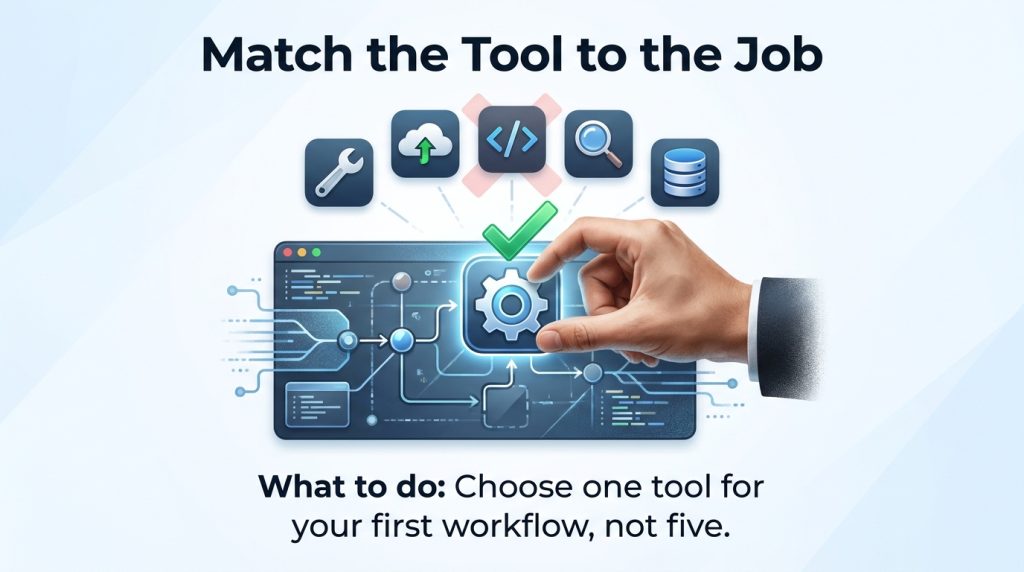
What to do: Choose one tool for your first workflow, not five.
How to do it: Use a builder like Zapier or Make for app-to-app connections, an assistant like Fireflies.ai for meeting notes, and Reclaim.ai for scheduling. Test each on a free plan before paying.
Why it matters: A single well-connected workflow is easier to maintain and debug than a tangle of tools.
Example: A remote project manager connects Fireflies.ai to a task board, so action items from each call appear as cards the same day.
3. Add a Human Review Step
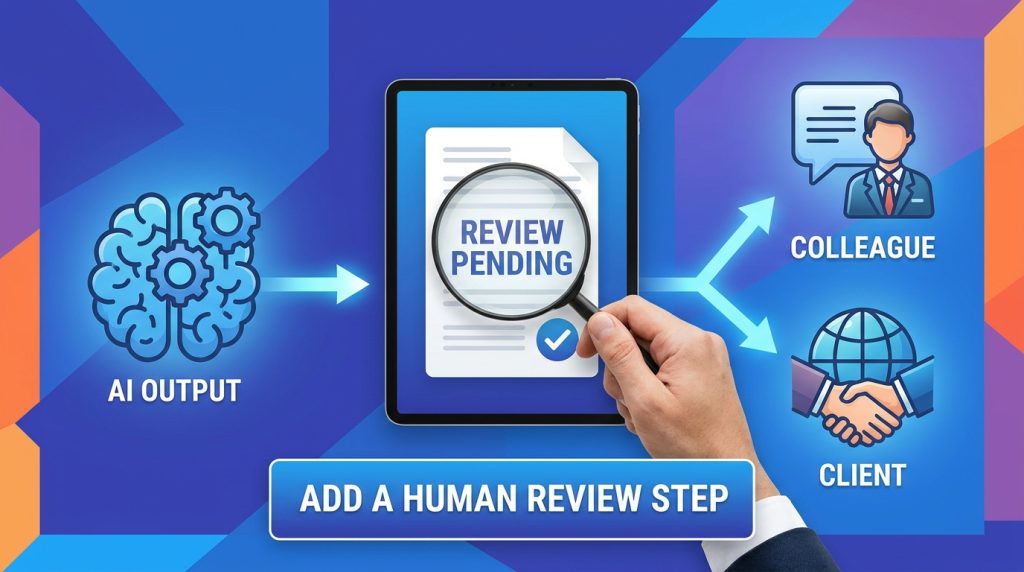
What to do: Put an approval step between the AI output and anything that reaches a client or colleague.
How to do it: Send AI drafts to a review folder or a private chat. Set a rule that nothing goes out without a quick check.
Why it matters: Workday’s research shows that fixing poor output can erase much of the time AI saves.
Example: An AI tool drafts a client invoice reminder, and the freelancer approves it with one click before it is sent.
4. Measure Before You Expand

What to do: Track time saved and errors for four weeks before building the next workflow.
How to do it: Record minutes spent on the task before and after automation, plus the number of corrections you made. Compare the totals.
Why it matters: Measured results show whether a workflow is truly saving time, not just feeling faster.
Example: A small agency finds that a meeting summary workflow saves 90 minutes a week, but the team spends 20 of those minutes fixing names, so they refine the prompt.
7 AI Workflow Automation Tools That Cut Admin Time
These seven systems cover common admin needs. Prices and features change often, so confirm them on each vendor’s site before you commit.
1. Zapier: Best for Connecting Everyday Apps
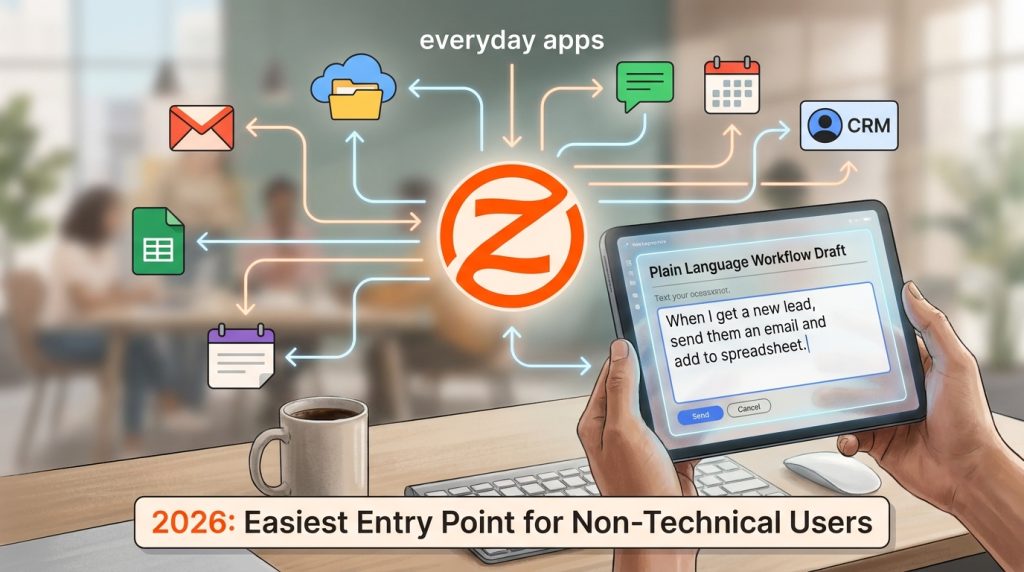
Zapier links thousands of apps with trigger-and-action workflows. Its AI features let you describe a workflow in plain language and generate a draft. Reviewers in 2026 describe it as the easiest entry point for non-technical users.
What to do: Build a workflow that sends new form submissions to a spreadsheet and a notification channel.
Why it matters: Manual data entry is one of the most common admin drains.
2. Make: Best for Visual, Multi-Step Logic

Make uses a visual scenario builder with branching logic. Reviewers often rate it as strong value for complex workflows, with pricing based on operations rather than per-task fees alone.
What to do: Build a branching flow that routes urgent support emails to one person and general questions to a shared inbox.
Why it matters: Branching logic removes manual sorting from your inbox.
3. n8n: Best for Technical Teams and Data Control

n8n is an open-source platform that can be self-hosted, which gives you control over where data is stored. It suits teams with some technical skill. A self-hosted setup has no license fee, but you pay for servers and maintenance.
What to do: Host a workflow that processes internal documents without sending them to a third-party cloud.
Why it matters: Self-hosting can help teams that handle sensitive client information.
4. Microsoft Power Automate: Best for Microsoft 365 Users
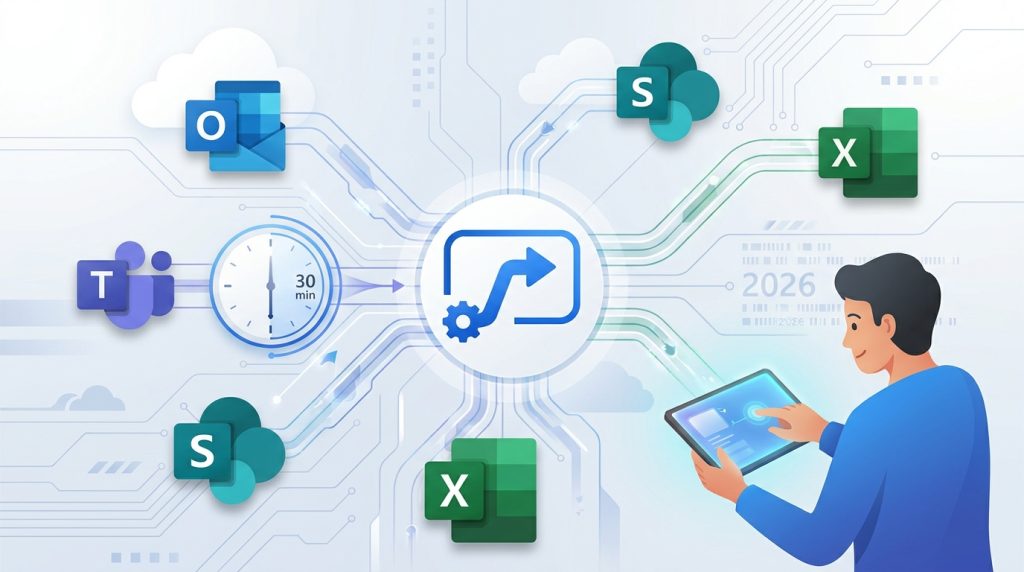
Power Automate connects Outlook, Teams, SharePoint, and Excel. One 2026 comparison reported that non-technical staff can assemble basic cross-app flows in under 30 minutes, though results will vary by user.
What to do: Create a flow that saves email attachments from invoices into a shared folder and logs the details in a sheet.
Why it matters: Organized records reduce the time spent searching for documents.
5. Airtable: Best for Project and Client Operations

Airtable combines a spreadsheet-style database with automations. It works well for agencies and operations teams that track clients, deliverables, and invoices in one place. A client onboarding flow that moves records and sends welcome emails can be set up in an afternoon.
What to do: Set up an onboarding base that sends a welcome email when a new client record is added.
Why it matters: Centralized records reduce the coordination work between tools.
6. Fireflies.ai: Best for Meeting Notes and Action Items

Fireflies.ai records and transcribes meetings, then produces summaries and action items. Reviewers in 2026 report it removes much of the post-call write-up, though accuracy drops with background noise and strong accents.
What to do: Enable automatic recording for client calls and send the action items to your task board.
Why it matters: Action items are often lost after meetings, which causes rework and missed deadlines.
7. Reclaim.ai: Best for Scheduling and Focus Time

Reclaim.ai manages calendars automatically, scheduling tasks, habits, and meetings around your priorities. The 2025 vendor data cited earlier reports time savings in scheduling, though results depend on how many meetings you attend.
What to do: Let Reclaim.ai block focus time for your top three weekly tasks.
Why it matters: Protected focus time reduces the time lost to calendar back-and-forth and reactive work.
Common Mistakes to Avoid
- Automating before fixing the process. Automation copies whatever already happens, including errors. Solution: Simplify the manual process first, then automate it.
- Expecting an 80 percent cut from day one. No credible source I found supports that figure as a general result. Solution: Measure your own time savings over four weeks and set realistic goals.
- Skipping human review. AI drafts can contain errors that cost more to fix later. Solution: Add an approval step before anything reaches clients.
- Ignoring data and privacy rules. Client and employee data may be restricted by law or contract. Solution: Read each vendor’s data policy and avoid sending sensitive data to tools you have not vetted.
- Building too many workflows at once. Complexity makes problems hard to trace. Solution: Launch one workflow, test it for two weeks, then add the next.
Useful Tips for Beginners
- Start on free plans. Test each tool before paying for features.
- Keep a simple log. Write down each workflow, its trigger, and its owner.
- Set error alerts. Most platforms can notify you when a workflow fails.
- Use clear prompts. Specific instructions produce more useful AI output.
- Review costs monthly. Task-based pricing can rise quickly as usage grows.
- Track real hours. Compare your actual time totals, not just your impression of speed.
Restricted and Available Countries for AI Workflow Automation Tools
Restricted under U.S. sanctions (as of November 2026): According to the U.S. Treasury Department’s Office of Foreign Assets Control (OFAC), comprehensive embargoes apply to Cuba, Iran, and North Korea, plus the Crimea, Donetsk, and Luhansk regions of Ukraine. Reputable vendors generally do not offer services there. Sources disagree on Syria’s status, so verify it with OFAC before you sign up.
Targeted restrictions: Russia, Belarus, and Venezuela face sectoral and list-based sanctions. Some vendors limit payments, features, or onboarding in these markets.
Still not available in some countries: Even outside sanctioned locations, some AI workflow tools do not offer full service in every country. Vendor-level exclusions are not always published in one place, and availability can change with payment methods, data-residency rules, or local regulations. Before you buy, check each vendor’s supported-country list and its terms of service. If a tool does not list your country, contact the vendor directly and ask for written confirmation.
This is general information, not legal advice. For sanctions questions, consult a qualified adviser.
Frequently Asked Questions
Is AI workflow automation worth it for small teams?
It can be, especially for repetitive tasks with clear steps. Start with one workflow, measure the time it saves over four weeks, and expand only if the numbers justify it. Results vary, so treat any savings figure as an estimate until you measure your own.
Does AI workflow automation require coding?
Not for most business workflows. Builders like Zapier, Make, and Power Automate use visual editors. Custom integrations or self-hosted setups, such as n8n, may need technical skill.
How much time can I realistically save?
Published studies report a wide range, from about 2 to 6 hours per week in some scheduling and teaching contexts, and results depend on the task. Use your own tracked hours as the most reliable guide.
Can I earn money by offering AI workflow automation services?
Some freelancers and agencies do offer setup and maintenance for clients. Demand, pricing, and results vary widely, and no income or client volume is guaranteed.
Final Thoughts
AI workflow automation tools can reduce admin work when you choose the right task, the right tool, and a clear review process. The seven systems here cover common needs, from app connections to meeting notes to scheduling. The strongest evidence points to measurable but modest savings, not guaranteed 80 percent cuts.
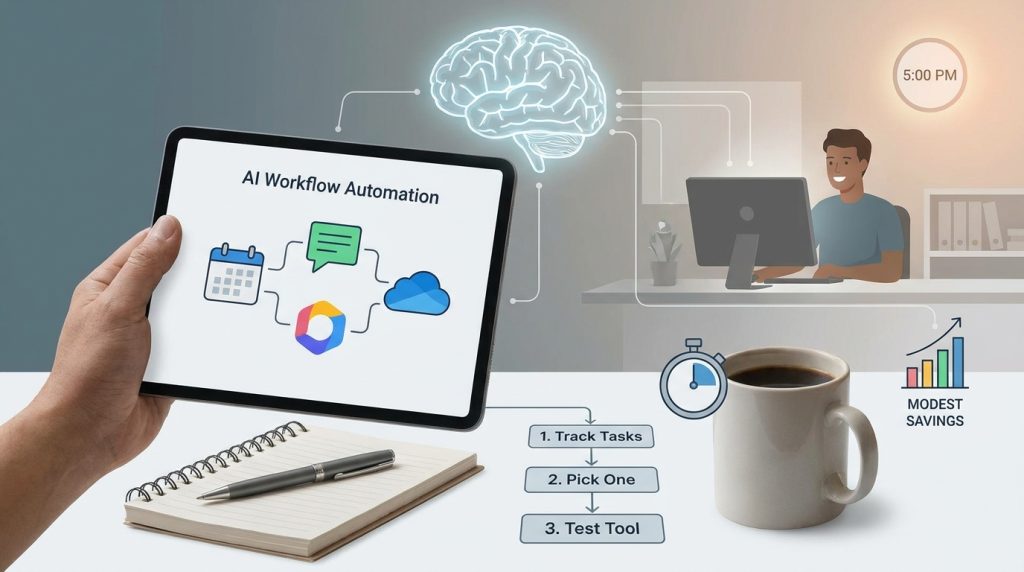
Your next practical step is simple. Track your repetitive tasks for one week, pick the one that takes the most time, and test one tool on its free plan. Measure the results for four weeks, then decide what to automate next. Choosing the right AI workflow automation approach is a foundation decision, so start small and verify every gain.
For more practical guides on remote work tools and digital productivity, visit the remote work tools guide on Digital Task Compass. For occupational and productivity data, see the U.S. Bureau of Labor Statistics.